Showing posts with label tutorial. Show all posts
Showing posts with label tutorial. Show all posts
Friday, February 13, 2015

Thursday, February 5, 2015
Android beginner tutorial Part 37 GridView widget
In this tutorial well learn how to display text data using GridView widget.
The GridView component displays data in a table structure.
There are a few properties that we can use to customize the appearance of the widget.
The first one is android:numColumns - it determines how many columns the grid has. It can be set to "auto_fit" to fit as many columns as possible.
The android:verticalSpacing and android:horizontalSpacing variables determine the horizontal and vertical spacing between the cells.
The android:columnWidth property sets the width of each column.
The android:stretchMode property determines how the grid is stretched. You can set it to columnWidth to increase the cell width if there is any extra space left, or to spacingWidth to increase the spacing between the cells. Set to none to disable stretching.
Go to activity_main.xml layout file and create a simple layout with a TextView and a GridView:
We need to have an array declared in our strings.xml file. Its the one from the previous tutorials:
Go to MainActivity.java class. Implement OnItemClickListener class:
Declare text and grid variables to later reference the TextView and GridView objects:
Set their value sin onCreate() function. Then retreive the array from the strings.xml and apply it to an array adapter. Apply this adapter to this activity using setAdapter() method, then call setOnItemClickListener() method to add a click listener:
Add a onItemClick() function, which handles the item click event. Display the selected item in the text field:
Full code:
The results look like this:

Thanks for reading!
Read more »
The GridView component displays data in a table structure.
There are a few properties that we can use to customize the appearance of the widget.
The first one is android:numColumns - it determines how many columns the grid has. It can be set to "auto_fit" to fit as many columns as possible.
The android:verticalSpacing and android:horizontalSpacing variables determine the horizontal and vertical spacing between the cells.
The android:columnWidth property sets the width of each column.
The android:stretchMode property determines how the grid is stretched. You can set it to columnWidth to increase the cell width if there is any extra space left, or to spacingWidth to increase the spacing between the cells. Set to none to disable stretching.
Go to activity_main.xml layout file and create a simple layout with a TextView and a GridView:
<LinearLayout xmlns:android="http://schemas.android.com/apk/res/android"
    xmlns:tools="http://schemas.android.com/tools"
    android:layout_width="match_parent"
    android:layout_height="match_parent"
    android:orientation="vertical"
    tools:context=".MainActivity" >

<TextView
    android:id="@+id/text"
    android:layout_width="fill_parent"
    android:layout_height="wrap_content" />

<GridView
    android:id="@+id/grid"
    android:layout_width="fill_parent"
    android:layout_height="fill_parent"
    android:verticalSpacing="35dp"
    android:horizontalSpacing="5dp"
    android:numColumns="auto_fit"
    android:columnWidth="100dp"
    android:stretchMode="columnWidth"
    android:gravity="center"
    />

</LinearLayout>
We need to have an array declared in our strings.xml file. Its the one from the previous tutorials:
<?xml version="1.0" encoding="utf-8"?>
<resources>

    <string name="app_name">Code For Food Test</string>
    <string name="menu_settings">Settings</string>
    <string-array name="choices_array">
        <item>One</item>
        <item>Two</item>
        <item>Three</item>
        <item>Four</item>
        <item>Five</item>
        <item>Seven</item>
        <item>Eight</item>
        <item>Nine</item>
        <item>Ten</item>
    </string-array>

</resources>
Go to MainActivity.java class. Implement OnItemClickListener class:
public class MainActivity extends Activity implements OnItemClickListener{
Declare text and grid variables to later reference the TextView and GridView objects:
private TextView text;
private GridView grid;
Set their value sin onCreate() function. Then retreive the array from the strings.xml and apply it to an array adapter. Apply this adapter to this activity using setAdapter() method, then call setOnItemClickListener() method to add a click listener:
@Override
protected void onCreate(Bundle savedInstanceState) {
super.onCreate(savedInstanceState);
setContentView(R.layout.activity_main);

grid = (GridView)findViewById(R.id.grid);
text = (TextView)findViewById(R.id.text);

String[] choices = getResources().getStringArray(R.array.choices_array);

ArrayAdapter<String> arrayAdapter = new ArrayAdapter<String>(this, android.R.layout.simple_list_item_1, choices);
grid.setAdapter(arrayAdapter);
grid.setOnItemClickListener(this);
}
Add a onItemClick() function, which handles the item click event. Display the selected item in the text field:
public void onItemClick(AdapterView<?> parent, View view, int pos, long id) {
    text.setText("The selected item is " + parent.getItemAtPosition(pos).toString());
    }
Full code:
package com.kircode.codeforfood_test;

import android.app.Activity;
import android.os.Bundle;
import android.view.Menu;
import android.view.View;
import android.widget.AdapterView;
import android.widget.AdapterView.OnItemClickListener;
import android.widget.ArrayAdapter;
import android.widget.GridView;
import android.widget.TextView;

public class MainActivity extends Activity implements OnItemClickListener{

private TextView text;
private GridView grid;

@Override
protected void onCreate(Bundle savedInstanceState) {
super.onCreate(savedInstanceState);
setContentView(R.layout.activity_main);

grid = (GridView)findViewById(R.id.grid);
text = (TextView)findViewById(R.id.text);

String[] choices = getResources().getStringArray(R.array.choices_array);

ArrayAdapter<String> arrayAdapter = new ArrayAdapter<String>(this, android.R.layout.simple_list_item_1, choices);
grid.setAdapter(arrayAdapter);
grid.setOnItemClickListener(this);
}

public void onItemClick(AdapterView<?> parent, View view, int pos, long id) {
    text.setText("The selected item is " + parent.getItemAtPosition(pos).toString());
    }

@Override
public boolean onCreateOptionsMenu(Menu menu) {
// Inflate the menu; this adds items to the action bar if it is present.
getMenuInflater().inflate(R.menu.activity_main, menu);
return true;
}

}
The results look like this:
Thanks for reading!
Flash Sound Tutorial How to Add Sound to Flash Movies Importing Audio Files into a Flash Documents Library
In this beginners Flash sound tutorial, were going to talk about the basics of how to add sound in Flash. Adding sound to your Flash projects can make them a little more interesting. You can use audio files to add voice over narrations, background music and sound effects, for example. One way of being able to work with sound using Flash is by importing the sound files into your Flash document. Some of the audio formats that Flash gives you the ability to import include, but are not limited to:
In the next article, were going to learn how to add imported audio files to a Flash documents timeline. That article is also going to talk about the difference between the Flash Event Sound and the Flash Stream Sound options - two options for synchronizing sound in Flash.
NEXT: Adding Sound to Flash Movie Timeline and Choosing Flash Sync Sound Options - Flash Event Sound vs Flash Stream Sound
Read more »
- MP3
- WAV
- AIFF
NOTE: Working with audio in Flash can take up a lot of resources. You might want to consider working with MP3 files over WAV and AIFF files since MP3 files are compressed and will take up less disk space. Also, if you wont be using the entire audio file, you might want to create a shorter version of the audio file using an audio editing application, and use that shortened version instead. This will help save more disk space.
To be able to add sound to the timeline of your Flash movie, import the audio file into your Flash document first. Heres how:
To be able to add sound to the timeline of your Flash movie, import the audio file into your Flash document first. Heres how:
- From the main menu, choose File > Import > Import to Library

- When the Import to Library dialog box comes up, navigate to the folder that contains the audio file, select the file, and click on Open

- Once Flash finishes importing the file, you should be able to see it in the Flash documents library

In the next article, were going to learn how to add imported audio files to a Flash documents timeline. That article is also going to talk about the difference between the Flash Event Sound and the Flash Stream Sound options - two options for synchronizing sound in Flash.
NEXT: Adding Sound to Flash Movie Timeline and Choosing Flash Sync Sound Options - Flash Event Sound vs Flash Stream Sound
Android beginner tutorial Part 58 Send and receive data between Activities
In this tutorial well learn how to transfer data between two Activities.
We are going to have two activities - MainActivity and SecondActivity. Ive already covered how to create secondary Activities in the tutorial about Intents. I explained how to do that in detail in that tutorial, so if you followed my tutorials you should be able to do that. A reminder: add an Activity in the Manifest XML file and add a SecondActivity.java class and an activity_second.xml layout.
The main activity is going to have a button that opens a new Activity. However, it launches it with an intention to receive a result. This is done using a startActivityForResult() method. By doing it that way we tell our main activity to expect a result from the Activity were launching. In the second activity well have an EditText input and a button. When the button is pressed, the data in the text field is sent back to the main activity and the second activity is closed.
When the main activity receives the message, it displays it in a toast.
Lets see how we are going to do this. Firstly, go to activity_main.xml layout and add a button:
In MainActivity.java declare an ID for the request:
Use it when you call startActivityForResult() in the click event handler of the button:
The request is sent, but what about receiving the results?
Create a function onActivityResult(). Call its superclass and then check if resultCode parameter equals RESULT_OK. That means weve received a result as expected.
Inside the if...statement declare an "extras" variable, which is a Bundle type object and gets its values from data.getExtras().
Then we check if requestCode parameters value equals IDM_TEST (the id we passed when requesting the result), and if so, toast the results using the extras object:
Full MainActivity.java code:
The activity_second.xml layout has an EditText object and a Button:
In SecondActivity.java class, we only need to handle the button. When it is clicked, we create an intent and use a method called setResult(). To pass the values to the parent activity we can use the putExtra() method of the intent. It has 2 parameters - name and value.
Thats all! Now you can go to the second activity from your main one, enter some text, return to the main activity using the button and see the main activity display the data received from the second one.
Thanks for reading!
Read more »
We are going to have two activities - MainActivity and SecondActivity. Ive already covered how to create secondary Activities in the tutorial about Intents. I explained how to do that in detail in that tutorial, so if you followed my tutorials you should be able to do that. A reminder: add an Activity in the Manifest XML file and add a SecondActivity.java class and an activity_second.xml layout.
The main activity is going to have a button that opens a new Activity. However, it launches it with an intention to receive a result. This is done using a startActivityForResult() method. By doing it that way we tell our main activity to expect a result from the Activity were launching. In the second activity well have an EditText input and a button. When the button is pressed, the data in the text field is sent back to the main activity and the second activity is closed.
When the main activity receives the message, it displays it in a toast.
Lets see how we are going to do this. Firstly, go to activity_main.xml layout and add a button:
<LinearLayout xmlns:android="http://schemas.android.com/apk/res/android"
    xmlns:tools="http://schemas.android.com/tools"
    android:layout_width="match_parent"
    android:layout_height="match_parent"
    android:orientation="vertical"
    tools:context=".MainActivity" >

    <TextView android:layout_width="match_parent"
        android:layout_height="wrap_content"
        android:textSize="32sp"
        android:text="First Activity"
        />

    <Button android:id="@+id/goButton"
        android:layout_width="match_parent"
        android:layout_height="wrap_content"
        android:text="Launch Second Activity"
        />

</LinearLayout>
In MainActivity.java declare an ID for the request:
private static final int IDM_TEST = 101;
Use it when you call startActivityForResult() in the click event handler of the button:
@Override
protected void onCreate(Bundle savedInstanceState) {
super.onCreate(savedInstanceState);
setContentView(R.layout.activity_main);

final Button btn = (Button)findViewById(R.id.goButton);
btn.setOnClickListener(new View.OnClickListener() {

@Override
public void onClick(View v) {
Intent intent = new Intent();
intent.setClass(getApplicationContext(), SecondActivity.class);
startActivityForResult(intent, IDM_TEST);
}
});
}
The request is sent, but what about receiving the results?
Create a function onActivityResult(). Call its superclass and then check if resultCode parameter equals RESULT_OK. That means weve received a result as expected.
Inside the if...statement declare an "extras" variable, which is a Bundle type object and gets its values from data.getExtras().
Then we check if requestCode parameters value equals IDM_TEST (the id we passed when requesting the result), and if so, toast the results using the extras object:
protected void onActivityResult(int requestCode, int resultCode, Intent data){
super.onActivityResult(requestCode, resultCode, data);
if(resultCode == RESULT_OK){
Bundle extras = data.getExtras();
// handle results
if(requestCode == IDM_TEST){
Toast toast = Toast.makeText(MainActivity.this, extras.getString("UserText"), Toast.LENGTH_SHORT);
toast.show();
}
}
}
Full MainActivity.java code:
package com.kircode.codeforfood_test;

import android.app.Activity;
import android.content.Intent;
import android.os.Bundle;
import android.view.View;
import android.widget.Button;
import android.widget.Toast;

public class MainActivity extends Activity{

private static final int IDM_TEST = 101;

@Override
protected void onCreate(Bundle savedInstanceState) {
super.onCreate(savedInstanceState);
setContentView(R.layout.activity_main);

final Button btn = (Button)findViewById(R.id.goButton);
btn.setOnClickListener(new View.OnClickListener() {

@Override
public void onClick(View v) {
Intent intent = new Intent();
intent.setClass(getApplicationContext(), SecondActivity.class);
startActivityForResult(intent, IDM_TEST);
}
});
}

protected void onActivityResult(int requestCode, int resultCode, Intent data){
super.onActivityResult(requestCode, resultCode, data);
if(resultCode == RESULT_OK){
Bundle extras = data.getExtras();
// handle results
if(requestCode == IDM_TEST){
Toast toast = Toast.makeText(MainActivity.this, extras.getString("UserText"), Toast.LENGTH_SHORT);
toast.show();
}
}
}

}
The activity_second.xml layout has an EditText object and a Button:
<LinearLayout xmlns:android="http://schemas.android.com/apk/res/android"
    xmlns:tools="http://schemas.android.com/tools"
    android:layout_width="match_parent"
    android:layout_height="match_parent"
    android:orientation="vertical"
    tools:context=".MainActivity" >

    <TextView android:layout_width="match_parent"
        android:layout_height="wrap_content"
        android:textSize="32sp"
        android:text="Second Activity"
        />

    <EditText android:layout_width="match_parent"
        android:layout_height="wrap_content"
        android:hint="Write something here..."
        android:id="@+id/editText"
        />

    <Button android:id="@+id/backButton"
        android:layout_width="match_parent"
        android:layout_height="wrap_content"
        android:text="OK"
        />

</LinearLayout>
In SecondActivity.java class, we only need to handle the button. When it is clicked, we create an intent and use a method called setResult(). To pass the values to the parent activity we can use the putExtra() method of the intent. It has 2 parameters - name and value.
package com.kircode.codeforfood_test;

import android.app.Activity;
import android.content.Intent;
import android.os.Bundle;
import android.view.View;
import android.widget.Button;
import android.widget.EditText;

public class SecondActivity extends Activity{


@Override
protected void onCreate(Bundle savedInstanceState) {
super.onCreate(savedInstanceState);
setContentView(R.layout.activity_second);

final Button btn = (Button)findViewById(R.id.backButton);
btn.setOnClickListener(new View.OnClickListener() {

@Override
public void onClick(View v) {
EditText text = (EditText)findViewById(R.id.editText);

Intent intent = new Intent();
intent.putExtra("UserText", text.getText().toString());
setResult(RESULT_OK, intent);
finish();
}
});
}

}
Thats all! Now you can go to the second activity from your main one, enter some text, return to the main activity using the button and see the main activity display the data received from the second one.
Thanks for reading!
Wednesday, February 4, 2015
Android beginner tutorial Part 69 Queries and Cursors
In this tutorial we will add our Content Provider to the Manifest xml and learn a bit about queries and cursors.
To make a Content Provider visible and usable by the system and your own application, we need to add it to the AndroidManifest.xml file of our project.
Add a new node provider to the application node, set values for two of its attributes - android:name and android:authorities. The name attribute points to the custom ContentProvider class, and the authorities value is the URI address of the provider:
To send SQL queries to the content provider from your application, use the ContentResolver object that is obtainable using getContentResolver() method.
For example, this way we can send a query that selects all names and phones of the people in our database.
The query() method, for instance, has 5 parameters. Those are the URI address of the provider, the projection (list of columns to return, if null - everything is returned), selection (what would normally be written after "WHERE" in an SQL command), selectionArgs (extra functionality for selection parameter) and sortOrder (what would normally be written after "ORDER BY").
The Cursor object thats returned to us is a helpful tool for navigating through the results of the query. It has a set of useful methods like moveToFirst(), moveToLast(), moveToNext(), moveToPrevious(), moveToPosition(), getToPosition() and more.
Since the Cursor lines up all the results in some sort of a row and moves back and forth displaying one at a time, there are a few methods that let us know where exactly the cursor is currently located. These methods are isFirst(), isLast(), isBeforeFirst() and isAfterLast().
The insert(), update() and delete() methods are also all called from the ContentResolver object, but they dont result any Cusors. They are even simpler commands that basically insert, update and delete rows in a table.
Thats all for today.
Thanks for reading!
Read more »
To make a Content Provider visible and usable by the system and your own application, we need to add it to the AndroidManifest.xml file of our project.
Add a new node provider to the application node, set values for two of its attributes - android:name and android:authorities. The name attribute points to the custom ContentProvider class, and the authorities value is the URI address of the provider:
        <provider
            android:name="com.kircode.codeforfood_test.myContentProvider"
            android:authorities="com.kircode.codeforfood_test.contactprovider">
        </provider>
To send SQL queries to the content provider from your application, use the ContentResolver object that is obtainable using getContentResolver() method.
For example, this way we can send a query that selects all names and phones of the people in our database.
String[] columns = new String[] {myDbHelper.NAME, myDbHelper.PHONE};
ContentResolver resolver = getContentResolver();
Cursor cursor = resolver.query(CONTENT_URI, columns, null, null, null);
The query() method, for instance, has 5 parameters. Those are the URI address of the provider, the projection (list of columns to return, if null - everything is returned), selection (what would normally be written after "WHERE" in an SQL command), selectionArgs (extra functionality for selection parameter) and sortOrder (what would normally be written after "ORDER BY").
The Cursor object thats returned to us is a helpful tool for navigating through the results of the query. It has a set of useful methods like moveToFirst(), moveToLast(), moveToNext(), moveToPrevious(), moveToPosition(), getToPosition() and more.
Since the Cursor lines up all the results in some sort of a row and moves back and forth displaying one at a time, there are a few methods that let us know where exactly the cursor is currently located. These methods are isFirst(), isLast(), isBeforeFirst() and isAfterLast().
The insert(), update() and delete() methods are also all called from the ContentResolver object, but they dont result any Cusors. They are even simpler commands that basically insert, update and delete rows in a table.
Thats all for today.
Thanks for reading!
Tuesday, February 3, 2015
Android beginner tutorial Part 40 AlertDialog class
Today well learn about the AlertDialog class.
There are many types of Dialogs in Android - pop up windows that inform, confirm or request data from the user. Today well take a look at the AlertDialog class - a simple pop up dialog window that can display a title, a text message, and up to 3 buttons - a positive one, a negative one and a neutral one. Its also possible to display more complex things here like lists and switches, but well get to that later.
First, go to the main Activity layout XML and add a button.
Now go to MainActivity.java class. Here, create a reference to the button in the layout and add a click event listener for it.
In the onClick handler function of the listener, well create the AlertDialog. First, declare a builder variable of AlertDialog.Builder class.
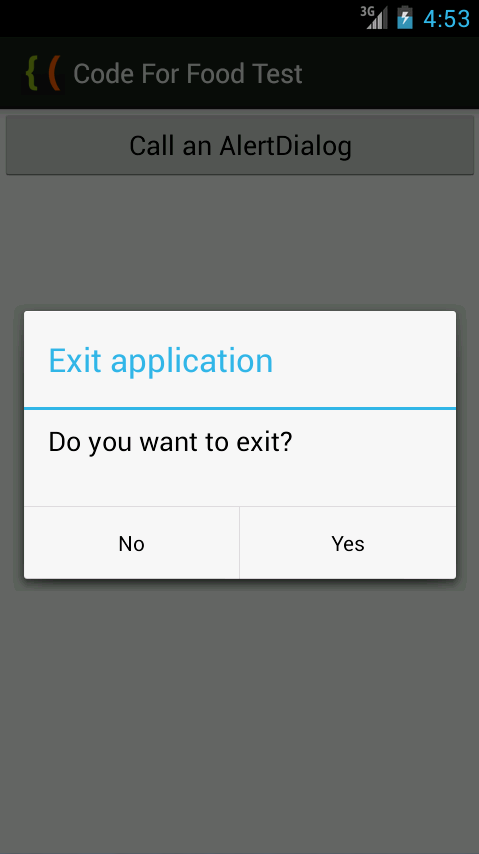
Now we can customize it. I want the dialog window to have 2 buttons - Yes and No, and the Yes button closes the application, while the No button closes just the dialog.
Set the title and message of the dialog:
Create a positive button using setPositiveButton() method. It has 2 parameters - label of the button and OnClickListener of the button. We can close the application using MainActivity.this.finish():
Negative button is created similarly:
Then we can make it impossible for the user to close the dialog by pressing "Back" button on their device. Do this using the setCancelable() method:
Create an AlertDialog instance, set its value to builder.create(). Then use show() method of the dialog to display it.
Full MainActivity.java code:
The results look like this:
Thanks for reading!
Read more »
There are many types of Dialogs in Android - pop up windows that inform, confirm or request data from the user. Today well take a look at the AlertDialog class - a simple pop up dialog window that can display a title, a text message, and up to 3 buttons - a positive one, a negative one and a neutral one. Its also possible to display more complex things here like lists and switches, but well get to that later.
First, go to the main Activity layout XML and add a button.
<LinearLayout xmlns:android="http://schemas.android.com/apk/res/android"
    xmlns:tools="http://schemas.android.com/tools"
    android:layout_width="match_parent"
    android:layout_height="match_parent"
    android:orientation="vertical"
    tools:context=".MainActivity" >

<Button
    android:id="@+id/testButton"
    android:layout_width="fill_parent"
    android:layout_height="wrap_content"
    android:text="Call an AlertDialog"
    />

</LinearLayout>
Now go to MainActivity.java class. Here, create a reference to the button in the layout and add a click event listener for it.
In the onClick handler function of the listener, well create the AlertDialog. First, declare a builder variable of AlertDialog.Builder class.
AlertDialog.Builder builder = new AlertDialog.Builder(MainActivity.this);
Now we can customize it. I want the dialog window to have 2 buttons - Yes and No, and the Yes button closes the application, while the No button closes just the dialog.
Set the title and message of the dialog:
builder.setTitle("Exit application");
builder.setMessage("Do you want to exit?");
Create a positive button using setPositiveButton() method. It has 2 parameters - label of the button and OnClickListener of the button. We can close the application using MainActivity.this.finish():
builder.setPositiveButton("Yes", new DialogInterface.OnClickListener() {
@Override
public void onClick(DialogInterface dialog, int which) {
MainActivity.this.finish();
}
});
Negative button is created similarly:
builder.setNegativeButton("No", new DialogInterface.OnClickListener() {
@Override
public void onClick(DialogInterface dialog, int which) {
dialog.cancel();
}
});
Then we can make it impossible for the user to close the dialog by pressing "Back" button on their device. Do this using the setCancelable() method:
builder.setCancelable(false);
Create an AlertDialog instance, set its value to builder.create(). Then use show() method of the dialog to display it.
AlertDialog myDialog = builder.create();
myDialog.show();
Full MainActivity.java code:
package com.kircode.codeforfood_test;

import android.app.Activity;
import android.app.AlertDialog;
import android.content.DialogInterface;
import android.os.Bundle;
import android.view.Menu;
import android.view.View;
import android.widget.Button;

public class MainActivity extends Activity{

@Override
protected void onCreate(Bundle savedInstanceState) {
super.onCreate(savedInstanceState);
setContentView(R.layout.activity_main);

Button button = (Button)findViewById(R.id.testButton);

button.setOnClickListener(new View.OnClickListener() {

@Override
public void onClick(View v) {
AlertDialog.Builder builder = new AlertDialog.Builder(MainActivity.this);
builder.setTitle("Exit application");
builder.setMessage("Do you want to exit?");
builder.setPositiveButton("Yes", new DialogInterface.OnClickListener() {
@Override
public void onClick(DialogInterface dialog, int which) {
MainActivity.this.finish();
}
});

builder.setNegativeButton("No", new DialogInterface.OnClickListener() {
@Override
public void onClick(DialogInterface dialog, int which) {
dialog.cancel();
}
});

builder.setCancelable(false);
AlertDialog myDialog = builder.create();
myDialog.show();
}
});
}

@Override
public boolean onCreateOptionsMenu(Menu menu) {
// Inflate the menu; this adds items to the action bar if it is present.
getMenuInflater().inflate(R.menu.activity_main, menu);
return true;
}

}
The results look like this:
Thanks for reading!
Saturday, January 31, 2015
Flash 8 Frame by Frame Animation and Flash 8 Onion Skin Feature Video Tutorial Series
NOTE: If you are looking for a version of this tutorial for Flash CS5, then check out Creating a Frame by Frame Animation - Flash CS5 Video Tutorials for Beginners.
In this set of Macromedia Flash tutorial online video training clips, well show you the basics of creating a simple frame by frame animation in Macromedia Flash 8. In these tutorials, youll learn how to insert blank keyframes, draw using the brush tool, and youll also learn how to use the helpful Flash 8 onion skin feature, which is a very useful tool when doing frame by frame animation in Flash 8. Well also be explaining what the FLA and SWF file formats are.
Macromedia Flash 8 lets you easily create your own frame-by-frame animation. In this video, we explain how a frame by frame animation works and we show you a simple example of a Flash 8 stickman animation.
[ALTERNATE LINK]
In part 2 of the Flash Frame-By-Frame Animation Tutorial for beginners series, we show you how to draw a simple stickman on the stage of your Flash document.
[ALTERNATE LINK]
In Part 3 of this Flash 8 video training series, well teach you how to add keyframes and how to use the Flash 8 Onion Skin feature - a feature that lets you see a tracing guide based on the objects in previous or next keyframes.
[ALTERNATE LINK]
Make it a habit to save your work often! It can save you from the frustration of losing all of your hard work.
[ALTERNATE LINK]
In Part 5 of the Flash Frame-By-Frame Animation video tutorial series, well show you how to preview your animation. This video also explains what a SWF file is.
[ALTERNATE LINK]
In the final part of the Flash Frame-By-Frame Animation Tutorial series, well show you how you can adjust the frame rate of your animation.
[ALTERNATE LINK]
Read more »
In this set of Macromedia Flash tutorial online video training clips, well show you the basics of creating a simple frame by frame animation in Macromedia Flash 8. In these tutorials, youll learn how to insert blank keyframes, draw using the brush tool, and youll also learn how to use the helpful Flash 8 onion skin feature, which is a very useful tool when doing frame by frame animation in Flash 8. Well also be explaining what the FLA and SWF file formats are.
Part 1: Flash 8 Frame-By-Frame Animation Tutorial - Introduction
Macromedia Flash 8 lets you easily create your own frame-by-frame animation. In this video, we explain how a frame by frame animation works and we show you a simple example of a Flash 8 stickman animation.
[ALTERNATE LINK]
Part 2: Flash 8 Frame-By-Frame Animation Tutorial - Drawing on the Stage
In part 2 of the Flash Frame-By-Frame Animation Tutorial for beginners series, we show you how to draw a simple stickman on the stage of your Flash document.
[ALTERNATE LINK]
Part 3: Flash 8 Frame-By-Frame Animation Tutorial - Adding Keyframes and the Onion Skin Feature
In Part 3 of this Flash 8 video training series, well teach you how to add keyframes and how to use the Flash 8 Onion Skin feature - a feature that lets you see a tracing guide based on the objects in previous or next keyframes.
[ALTERNATE LINK]
Part 4: Flash 8 Frame-By-Frame Animation Tutorial - Saving Your Document
Make it a habit to save your work often! It can save you from the frustration of losing all of your hard work.
[ALTERNATE LINK]
Part 5: Flash 8 Frame-By-Frame Animation Tutorial - Previewing Your Animation
In Part 5 of the Flash Frame-By-Frame Animation video tutorial series, well show you how to preview your animation. This video also explains what a SWF file is.
[ALTERNATE LINK]
Part 6: Flash 8 Frame-By-Frame Animation Tutorial - Adjusting the Frame Rate
In the final part of the Flash Frame-By-Frame Animation Tutorial series, well show you how you can adjust the frame rate of your animation.
[ALTERNATE LINK]
Friday, January 30, 2015
How to Create a Quiz in Flash ActionScript 3 Tutorial PART 1
Exercise File
Start_Quiz_App.fla
In this tutorial, we are going to learn how to create a quiz in Flash using ActionScript 3. Were going to make use of arrays and for loops in order to complete this project.
This tutorial comes with an exercise file (the download link can be found at the top of the article). Lets go ahead and open it and take a look at its contents. This Flash movie has 2 frames. The first frame contains the elements needed for the user to take the quiz. The second frame contains elements that will display the results (answers and scores). The Flash movie should start at frame 1, and stay there until the user finishes answering all the questions. Once the user is done, the Flash movie goes to frame 2 where the answers are checked and the score is given. Since the quiz and the results are separated into two different frames, then the code will be separated as well. Frame 1 will contain the code that is needed to run the quiz (displaying questions and storing the answers submitted by the user), while frame 2 will contain the code that is needed to check the answers, compute the results and display them.
So first, lets go ahead and work on frame 1. Frame 1 contains 3 objects:
The first thing well do is to stop the Flash movie on frame 1. If we dont, then the movie will just continue looping between frames 1 and 2. So select frame 1 of the actions layer, then go to the Actions Panel and put in a stop action.
Next, lets create a couple of objects:
nQNumber
We will be storing the quiz questions in an array. Each question will therefore be numbered starting at 0. This nQNumber variable will be used to move through each of those quiz questions. After the user answers one question, we will have this number increase by one and use that number to retrieve the next question.
aQuestions
This is the array that will be used to store the questions.
aCorrectAnswers
This is the array that stores all the correct answers. Of course we will have to be the ones to provide what the correct answers are, which is why this array is already populated with values. When the array was created, the values were also declared in the array constructor, therefore populating the array. The first value will have an index of 0, the second value will have an index of 1, and so on... You will notice that the aQuestions array, which is supposed to store the questions, has not been given any values yet. Dont worry, well provide those values shortly using array access notation instead.
aUserAnswers
This array will be used to store the answers given by the user. Each time the user (the quiz taker) submits an answer, then that answer will go into this array. So we just create this array first, but we dont put any values in it initially. Well have to wait for what the user will input in the answer field and use those to populate this array instead.
Next, lets go ahead and create the questions. Weve provided 4 answers when the aCorrectAnswers array was created, so well need to provide 4 questions as well. Make sure that the order of the questions corresponds to the order of the answers as well (question index 0 should match answer index 0, question index 1 should match answer index 1, and so on...). We will populate the aQuestions array using Array Access Notation:
So now that weve created all the needed objects and have added all the questions and answers for this first part of our project, lets now go ahead and create the actual quiz functionality.
The first thing well do is display the first question in the questions_txt TextField. So what we can do is get aQuestions[0] (the 0 index corresponds to the first item in the array, and therefore the first question) and assign it to the text property of our TextField like so: questions_txt.text = aQuestions[0] . But the problem here is that wed like to be able to update to the next question after the user finishes answering the first one. So instead of manually inputting the index number, we can make use of a variable instead. And then we can just update that variable whenever needed. This is where our nQNumber variable comes in. Initially, it has a value of 0, so typing in questions_txt.text = aQuestions[nQNumber] will be the the same as typing in questions_txt.text = aQuestions[0] . And then later on, well add some code that will increment the value of nQNumber every time the user submits an answer, thereby updating to the next question. But first, update your code so that the first question will be displayed in the questions_txt TextField:
And now that we have that, the next thing we need to fix is how our Flash movie is going to respond whenever a quiz taker types an answer in the input field and clicks on the submit button. So lets break it down. When the user clicks on the submit button, our flash movie should:
Since we want all this to happen whenever the user clicks on the button, well have to create a CLICK event handler for submit_btn. And lets give the event listener function the name quiz.
Why will there be a problem? There are 4 questions, so naturally, the user will end up clicking the submit button for a total of 4 times.
Yes that is true. But the 4th time the user clicks on the button, nQNumber will be increased to 4. And recall that our array index numbers start at 0, not at 1. So the last question is actually at aQuestions[3]. And aQuestions[4] is actually for a fifth question. But there is no fifth question, and trying to retrieve one from the array will cause an error.
So what do we do then?
Well need to put an if statement that will tell our Flash movie to no longer try to retrieve any more questions, once we get to the last one.
So lets do that now. We need to get the line questions_txt.text = aQuestions[nQNumber]; and place it in an if statement. The if statement needs to check if nQNumber is less than 4. If nQNumber is still less than 4, then go ahead and retrieve the next question. If it is no longer less than 4, then we dont want our code to retrieve any more questions. So we can type in if(nQNumber < 4) as our condition. But... thats actually not what well do. Instead of typing in 4, well use aQuestions.length instead. The length property of the array class tells us how many items there are in the array. So if an array has 5 items, then the array length will be 5. If it has 6 items, then the length will be 6. In this particular example, our array has 4 items, and therefore has an array length of 4.
Why cant I just type in 4? Is there a benefit to using the length property instead?
Well, no one is stopping you from hard-coding in a value of 4, but the great thing about making use of the length property instead is that if you decide to add more questions (or maybe remove some questions), then you wont have to go back to the if statement and hard-code in a new value. The length property will automatically update itself once you add or reduce items in the array. This will be especially useful if you had numerous items in your code that need to reference how long your array is. Imagine if you hard-coded the data numerous times in different parts of your code. Then every time you decide to add or subtract items to the array, then youll have to go back to all those hard-coded parts of your code, and manually change the value. That would not be very efficient.
So our updated event listener function will now look like this:
Great! So once the user gets through all the questions, what do we do next?
We then tell the Flash movie to go to the next frame where the user will get the quiz results. To do that, we just add an else clause to our if statement that will instruct our Flash movie to go the the next frame. We will use the nextFrame() method of the MovieClip class to move the playhead to the next frame. So basically, what were telling our Flash movie is that if nQNumber is no longer less than aQuestions.length, then it means that we dont have anymore questions and the quiz is done, and it can now move to frame 2 where the results will be displayed. So finally, our updated event listener function will look like this:
In the next part of this tutorial, we will work on the code that will display the answers that the user submitted alongside the correct answers. We will also work on the code that will check the answers and calculate and display the users score.
Heres the frame 1 code in full:
NEXT: How to Create a Quiz in Flash - ActionScript 3 Tutorial - PART 2
Read more »
Start_Quiz_App.fla
In this tutorial, we are going to learn how to create a quiz in Flash using ActionScript 3. Were going to make use of arrays and for loops in order to complete this project.
This tutorial comes with an exercise file (the download link can be found at the top of the article). Lets go ahead and open it and take a look at its contents. This Flash movie has 2 frames. The first frame contains the elements needed for the user to take the quiz. The second frame contains elements that will display the results (answers and scores). The Flash movie should start at frame 1, and stay there until the user finishes answering all the questions. Once the user is done, the Flash movie goes to frame 2 where the answers are checked and the score is given. Since the quiz and the results are separated into two different frames, then the code will be separated as well. Frame 1 will contain the code that is needed to run the quiz (displaying questions and storing the answers submitted by the user), while frame 2 will contain the code that is needed to check the answers, compute the results and display them.
So first, lets go ahead and work on frame 1. Frame 1 contains 3 objects:
- questions_txt - This is a Dynamic TextField that will be used to display the questions. In the Properties Inspector, this TextField has been set to be multilined.
- answers_txt - This is an Input TextField where the user will type in the answer. In the Properties Inspector, this TextField has been set to have a border and to be a single line TextField.
- submit_btn - This button will be used by the user to submit each answer.
The first thing well do is to stop the Flash movie on frame 1. If we dont, then the movie will just continue looping between frames 1 and 2. So select frame 1 of the actions layer, then go to the Actions Panel and put in a stop action.
stop();
Next, lets create a couple of objects:
stop();What are these instances for?
var nQNumber:Number = 0;
var aQuestions:Array = new Array();
var aCorrectAnswers:Array = new Array("Jupiter", "Mars", "war", "Titan");
var aUserAnswers:Array = new Array();
nQNumber
We will be storing the quiz questions in an array. Each question will therefore be numbered starting at 0. This nQNumber variable will be used to move through each of those quiz questions. After the user answers one question, we will have this number increase by one and use that number to retrieve the next question.
aQuestions
This is the array that will be used to store the questions.
aCorrectAnswers
This is the array that stores all the correct answers. Of course we will have to be the ones to provide what the correct answers are, which is why this array is already populated with values. When the array was created, the values were also declared in the array constructor, therefore populating the array. The first value will have an index of 0, the second value will have an index of 1, and so on... You will notice that the aQuestions array, which is supposed to store the questions, has not been given any values yet. Dont worry, well provide those values shortly using array access notation instead.
aUserAnswers
This array will be used to store the answers given by the user. Each time the user (the quiz taker) submits an answer, then that answer will go into this array. So we just create this array first, but we dont put any values in it initially. Well have to wait for what the user will input in the answer field and use those to populate this array instead.
Next, lets go ahead and create the questions. Weve provided 4 answers when the aCorrectAnswers array was created, so well need to provide 4 questions as well. Make sure that the order of the questions corresponds to the order of the answers as well (question index 0 should match answer index 0, question index 1 should match answer index 1, and so on...). We will populate the aQuestions array using Array Access Notation:
var nQNumber:Number = 0;
var aQuestions:Array = new Array();
var aCorrectAnswers:Array = new Array("Jupiter", "Mars", "war", "Titan");
var aUserAnswers:Array = new Array();
aQuestions[0] = "What is the biggest planet in our solar system?";
aQuestions[1] = "Which planet in our solar system is the 4th planet from the sun?";
aQuestions[2] = "Mars is named after the Roman god of ___.";
aQuestions[3] = "What is the name of Saturns largest moon?";
So now that weve created all the needed objects and have added all the questions and answers for this first part of our project, lets now go ahead and create the actual quiz functionality.
The first thing well do is display the first question in the questions_txt TextField. So what we can do is get aQuestions[0] (the 0 index corresponds to the first item in the array, and therefore the first question) and assign it to the text property of our TextField like so: questions_txt.text = aQuestions[0] . But the problem here is that wed like to be able to update to the next question after the user finishes answering the first one. So instead of manually inputting the index number, we can make use of a variable instead. And then we can just update that variable whenever needed. This is where our nQNumber variable comes in. Initially, it has a value of 0, so typing in questions_txt.text = aQuestions[nQNumber] will be the the same as typing in questions_txt.text = aQuestions[0] . And then later on, well add some code that will increment the value of nQNumber every time the user submits an answer, thereby updating to the next question. But first, update your code so that the first question will be displayed in the questions_txt TextField:
aQuestions[0] = "What is the biggest planet in our solar system?";So now, if you test the movie, you should see the first question displayed in the TextField.
aQuestions[1] = "Which planet in our solar system is the 4th planet from the sun?";
aQuestions[2] = "Mars is named after the Roman god of ___.";
aQuestions[3] = "What is the name of Saturns largest moon?";
questions_txt.text = aQuestions[nQNumber];
And now that we have that, the next thing we need to fix is how our Flash movie is going to respond whenever a quiz taker types an answer in the input field and clicks on the submit button. So lets break it down. When the user clicks on the submit button, our flash movie should:
- get the users answer (what he or she inputs in the answer field) and add it to the aUserAnswers array
- update to the next question
Since we want all this to happen whenever the user clicks on the button, well have to create a CLICK event handler for submit_btn. And lets give the event listener function the name quiz.
questions_txt.text = aQuestions[nQNumber];
submit_btn.addEventListener(MouseEvent.CLICK, quiz);
function quiz(e:MouseEvent):void
{
// This function will be responsible for:
// 1. pushing the users answers to the aCorrectAnswers array
// 2. updating to the next question
}function quiz(e:MouseEvent):void
{
aUserAnswers.push(answers_txt.text);
answers_txt.text = ""; // This line puts an empty string, making the TextField appear empty again
}function quiz(e:MouseEvent):void
{
aUserAnswers.push(answers_txt.text);
answers_txt.text = "";
nQNumber++;
questions_txt.text = aQuestions[nQNumber];
}Why will there be a problem? There are 4 questions, so naturally, the user will end up clicking the submit button for a total of 4 times.
Yes that is true. But the 4th time the user clicks on the button, nQNumber will be increased to 4. And recall that our array index numbers start at 0, not at 1. So the last question is actually at aQuestions[3]. And aQuestions[4] is actually for a fifth question. But there is no fifth question, and trying to retrieve one from the array will cause an error.
So what do we do then?
Well need to put an if statement that will tell our Flash movie to no longer try to retrieve any more questions, once we get to the last one.
So lets do that now. We need to get the line questions_txt.text = aQuestions[nQNumber]; and place it in an if statement. The if statement needs to check if nQNumber is less than 4. If nQNumber is still less than 4, then go ahead and retrieve the next question. If it is no longer less than 4, then we dont want our code to retrieve any more questions. So we can type in if(nQNumber < 4) as our condition. But... thats actually not what well do. Instead of typing in 4, well use aQuestions.length instead. The length property of the array class tells us how many items there are in the array. So if an array has 5 items, then the array length will be 5. If it has 6 items, then the length will be 6. In this particular example, our array has 4 items, and therefore has an array length of 4.
Why cant I just type in 4? Is there a benefit to using the length property instead?
Well, no one is stopping you from hard-coding in a value of 4, but the great thing about making use of the length property instead is that if you decide to add more questions (or maybe remove some questions), then you wont have to go back to the if statement and hard-code in a new value. The length property will automatically update itself once you add or reduce items in the array. This will be especially useful if you had numerous items in your code that need to reference how long your array is. Imagine if you hard-coded the data numerous times in different parts of your code. Then every time you decide to add or subtract items to the array, then youll have to go back to all those hard-coded parts of your code, and manually change the value. That would not be very efficient.
So our updated event listener function will now look like this:
function quiz(e:MouseEvent):void
{
aUserAnswers.push(answers_txt.text);
answers_txt.text = "";
nQNumber++;
if(nQNumber < aQuestions.length)
{
questions_txt.text = aQuestions[nQNumber];
}
}Great! So once the user gets through all the questions, what do we do next?
We then tell the Flash movie to go to the next frame where the user will get the quiz results. To do that, we just add an else clause to our if statement that will instruct our Flash movie to go the the next frame. We will use the nextFrame() method of the MovieClip class to move the playhead to the next frame. So basically, what were telling our Flash movie is that if nQNumber is no longer less than aQuestions.length, then it means that we dont have anymore questions and the quiz is done, and it can now move to frame 2 where the results will be displayed. So finally, our updated event listener function will look like this:
function quiz(e:MouseEvent):void
{
aUserAnswers.push(answers_txt.text);
answers_txt.text = "";
nQNumber++;
if(nQNumber < aQuestions.length)
{
questions_txt.text = aQuestions[nQNumber];
}
else
{
nextFrame();
}
}In the next part of this tutorial, we will work on the code that will display the answers that the user submitted alongside the correct answers. We will also work on the code that will check the answers and calculate and display the users score.
Heres the frame 1 code in full:
stop();

var nQNumber:Number = 0;
var aQuestions:Array = new Array();
var aCorrectAnswers:Array = new Array("Jupiter", "Mars", "war", "Titan");
var aUserAnswers:Array = new Array();
aQuestions[0] = "What is the biggest planet in our solar system?";
aQuestions[1] = "Which planet in our solar system is the 4th planet from the sun?";
aQuestions[2] = "Mars is named after the Roman god of ___.";
aQuestions[3] = "What is the name of Saturns largest moon?";

questions_txt.text = aQuestions[nQNumber];
submit_btn.addEventListener(MouseEvent.CLICK, quiz);
function quiz(e:MouseEvent):void
{
     aUserAnswers.push(answers_txt.text);
     answers_txt.text = "";
     nQNumber++;
     if(nQNumber < aQuestions.length)
     {
          questions_txt.text = aQuestions[nQNumber];
     }
     else
     {
          nextFrame();
     }
}NEXT: How to Create a Quiz in Flash - ActionScript 3 Tutorial - PART 2
Thursday, January 29, 2015
Understanding the difference between Object Drawing Mode vs Merge Drawing Mode in Flash PART 1 Flash CS5 Beginners Tutorial
- Part 1
- Part 2
- Part 3
- Part 4
- Part 5
When you use the drawing tools in Flash, you have the option to draw in two modes: object drawing mode vs merge drawing mode. This article will explain a few of the differences between the two.
Step 1
Create a new Flash document.
Step 2
Select the brush tool. You can use any brush size, color and shape that youd like. But I recommend that you choose a brush size thats not too small so that what you draw will be thicker and more visible. Also, make sure that the color you choose is different from the background color of your document.
Step 3
Once the brush tool is selected, take a look at the toolbar and look for the icon that shows a circle inside a square.

You can click on this button, and it allows you to activate or deactivate the object drawing mode. If the icon appears to look inset, it means that the object drawing mode is ON. If not, then it means that the object drawing mode is OFF, and you are therefore on merge drawing mode instead.

Clicking on this button lets you switch between object mode and merge mode. Check the object drawing mode button in your toolbar to see whether its ON or OFF. If its ON, then click on it to turn it OFF. If not, then leave it as is.
Step 4
The best way to explain the differences between the two drawing modes is to create examples. So make sure that the object drawing mode is OFF. Then draw a line on the left side of the stage using the brush tool.

Now remember, since the object drawing mode is OFF, this means that this line was drawn in merge mode.
Step 5
Now lets switch to the object drawing mode. So this time, make sure that the object drawing mode is ON. And then draw another line on the right side of the stage using the brush tool.

Immediately, youll notice a difference. Youll see that this new line that you drew while you were in the object drawing mode is enclosed in a box. When its enclosed in this box, it means that the artwork is currently selected. And when its selected, this means that you can edit it (e.g. move it, change the color, modify the size). However, when you select something that was drawn in merge mode, it will NOT show a box or a border around it. In the next step, well see what happens instead.
Step 6
Now lets select the other line to see how artwork drawn in merge mode will look like when its selected.
In the toolbar, choose the selection tool (its the black arrow).

Then click on the line that you drew on the left side of the stage in order to select it.

Here, youll see that the selection looks different (click on the image above to enlarge). Instead of being enclosed in a box, youll see dots all over the artwork. So when you see this, this means that you currently have a merge type of drawing selected.
So here we see that object drawings and merge drawings look different from each other when they are selected. This easily lets us know whether something is an object drawing or a merge drawing.
But aside from this, what other differences do they have?
Another difference between a merge drawing and an object drawing is this:
Merge drawing - you have the ability to directly select just a portion of the drawing
Object drawing - if you try to select even just a small portion of the object drawing, the entire object drawing automatically gets selected
To better understand this, lets practice it using our examples on the stage.
Step 7
Make sure youre still using the selection tool. Lets first try to select a portion of the merge drawing on the left side of the stage. To select a portion, use the selection tool, then just click and drag a selection area that covers a small part of the artwork. Refer to the image below as a guide:

Once you release the mouse and youve selected the portion, youll see the dots appear only on top of the part that was selected. So this means that the parts that are not covered with dots are not included in the selection.
Step 8
Now lets edit the currently selected portion.
Go to the toolbar, and select a new color for the selected portion by picking one from the fill color box.

Just click on the color box and select a different color. Youll then see that the new color only applies to the selected portion.

So with merge drawings, you see that we can easily select just a portion of it. The selected portion can then be edited without affecting the rest of the drawing. You can change the selected portions color, modify its shape, move it to a different location, or you can even delete it if youd like.
In the next step, well see if we can do the same thing with the object drawing on the right.
Step 9
So now, while still using the selection tool, well try to select just a portion of the drawing on the right.
Go ahead and click and drag a selection area that just covers a portion of the shape, similar to what we did in step 7.

Once you release the mouse, youll see that even though you selected only a portion of the drawing, the entire shape still gets selected. That is what happens with object drawings. As long as you select even the tiniest portion of the drawing, the entire thing gets selected.
But what can you do if youve got an object drawing, but youd still like to be able to select only a portion of it? The next step will show you how.
Step 10
With object drawings, its still possible to select just a portion of the shape. Theres just an extra step that you have to do.
First, take note of the edit bar, which can be found above the stage. It should say Scene 1.

The edit bar tells you where you are. Right now, you are on scene 1.
Now go ahead and double-click on the object drawing on the right side of the stage.
After you double-click on it, look at the edit bar again. It should now say Scene 1 followed by Drawing Object.

What this means is that you are now inside the drawing object. You should see that you no longer have the box around your drawing. So in a way, its as if you opened the box to get direct access to the artwork inside it. And now that youre inside the box, youll be able to treat the artwork as a merge drawing. So youll now have the ability to select just portions of it instead of the entire shape.
Step 11
Once youre finished editing an object drawing, its important that you go back to the main scene. Otherwise, you might end up inadvertently adding unwanted elements to the object drawing that youre currently editing.
To go back to scene 1, just click on the Scene 1 link in the edit bar.

NOTE: Always be mindful of the edit bar. Its a common mistake for many to accidentally double-click on an object drawing, and then they fail to notice that they are no longer in the main scene, but continue to work as if they are.
In part 2 of this series, well create some object and merge drawing examples using the oval tool.
Understanding the difference between Object Drawing Mode vs Merge Drawing Mode in Flash - PART 2: NEXT >>
Wednesday, January 28, 2015
Android beginner tutorial Part 78 Creating Preferences Activity
In this tutorial we will create a preferences activity that can be invoked using the application menu.
First of all well need to create the xml that contains all the preferences in the settings menu. Go to the layout directory of your applications project and add a new file preferences.xml.
Add this code:
The key property is used as an identificator for this setting. It has to be a unique string. The title value is the text representation of the setting, and summary is the description of the setting item.
Go to strings.xml file to set the missing string values:
Create a new Activity in the same directory as the MainActivity.java class, call it TestPreferences.java.
Heres the code that applies the xml layout of the preferences page:
Now go to AndroidManifest.file of the application and add this line to the application node:
Doing so will tell Android that theres an Activity with that name in our application.
Now go to MainActivity.java class, add some code that creates an options menu and handles item selection in the menu. When the Settings item is selected, the preferences screen pops up:
And thats all for today! Changing the preference doesnt really do anything yet, but well work on that next time.
Thanks for reading!
Read more »
First of all well need to create the xml that contains all the preferences in the settings menu. Go to the layout directory of your applications project and add a new file preferences.xml.
Add this code:
<?xml version="1.0" encoding="utf-8"?>
<PreferenceScreen xmlns:android="http://schemas.android.com/apk/res/android">
    <CheckBoxPreference
        android:key="pref_mute"
        android:title="@string/pref_mute"
        android:summary="@string/pref_mute_summ"
        android:defaultValue="false" />

</PreferenceScreen>
The key property is used as an identificator for this setting. It has to be a unique string. The title value is the text representation of the setting, and summary is the description of the setting item.
Go to strings.xml file to set the missing string values:
<?xml version="1.0" encoding="utf-8"?>
<resources>

    <string name="app_name">CodeForFood Test Two</string>
    <string name="pref_mute">Mute</string>
    <string name="pref_mute_summ">Disable all the sound in the application</string>
    <string name="menu_settings">Settings</string>

</resources>
Create a new Activity in the same directory as the MainActivity.java class, call it TestPreferences.java.
Heres the code that applies the xml layout of the preferences page:
package com.example.codeforfoodtest_two;

import android.os.Bundle;
import android.preference.PreferenceActivity;

public class TestPreferences extends PreferenceActivity {

@Override
public void onCreate(Bundle savedInstanceState) {
    super.onCreate(savedInstanceState);
    addPreferencesFromResource(R.layout.preferences);
}

}
Now go to AndroidManifest.file of the application and add this line to the application node:
<activity android:name="TestPreferences"></activity>
Doing so will tell Android that theres an Activity with that name in our application.
Now go to MainActivity.java class, add some code that creates an options menu and handles item selection in the menu. When the Settings item is selected, the preferences screen pops up:
package com.example.codeforfoodtest_two;

import android.app.Activity;
import android.content.Intent;
import android.os.Bundle;
import android.view.Menu;
import android.view.MenuItem;

public class MainActivity extends Activity{

static final int IDM_SETTINGS = 101;

@Override
protected void onCreate(Bundle savedInstanceState) {
super.onCreate(savedInstanceState);
setContentView(R.layout.activity_main);
}

@Override
public boolean onCreateOptionsMenu(Menu menu){
menu.add(Menu.NONE, IDM_SETTINGS, Menu.NONE, R.string.menu_settings);
return(super.onCreateOptionsMenu(menu));
}

@Override
public boolean onOptionsItemSelected(MenuItem item){
if(item.getItemId()==IDM_SETTINGS){
Intent intent = new Intent();
intent.setClass(this, TestPreferences.class);
startActivity(intent);
}
return true;
}
}
And thats all for today! Changing the preference doesnt really do anything yet, but well work on that next time.
Thanks for reading!
Android beginner tutorial Part 31 Displaying data using AdapterView widgets
Today well learn the mechanics behind displaying text data in list widgets.
There are multiple list type widgets in Android. The most common ones are ListView, GridView, and Spinner (Gallery and SlidingDrawer classes once were a part of this list, but now they are deprecated). They are all subclasses of AdapterView class, which is a view whose children are determined by an Adapter.
If you read my previous tutorials, you already know that an Adapter is a bridge between a data provider and the widget that displays the data. It provides access to each element of the data and also takes care of displaying each item in the data by creating View objects.
All the AdapterView subclasses are containers that displays the given data in a specific way and handles all the user interaction events with each of the children, that are generated from the data.
There are multiple variations of the Adapter class for specific uses. For example, we already know about the ArrayAdapter - it lets us use the data from an array to display it in a widget (in the previous tutorials, we displayed it in AutoCompleteTextView and MultiAutoCompleteTextView objects).
Another common adapter is CursorAdapter, which is used for reading and displaying data from Cursor objects. A Cursor is an interface that provides read-write access to the resulted data returned from a database query.
It is possible to create your own custom Adapter classes for more specific needs. It is also possible to create your own AdapterView classes, which display the provided data.
The AdapterView class is the base class for AbsListView and AbsSpinner classes. The AbsListView class can be extended to display data in a list-type way - it is used in ListView and GridView components. The AbsSpinner class is used for dropdown lists in Spinner widget.
Thats the basic idea behind displaying provided data in list widgets.
We are now able to start learning separate list widgets in detail.
Thanks for reading!
Read more »
There are multiple list type widgets in Android. The most common ones are ListView, GridView, and Spinner (Gallery and SlidingDrawer classes once were a part of this list, but now they are deprecated). They are all subclasses of AdapterView class, which is a view whose children are determined by an Adapter.
If you read my previous tutorials, you already know that an Adapter is a bridge between a data provider and the widget that displays the data. It provides access to each element of the data and also takes care of displaying each item in the data by creating View objects.
All the AdapterView subclasses are containers that displays the given data in a specific way and handles all the user interaction events with each of the children, that are generated from the data.
There are multiple variations of the Adapter class for specific uses. For example, we already know about the ArrayAdapter - it lets us use the data from an array to display it in a widget (in the previous tutorials, we displayed it in AutoCompleteTextView and MultiAutoCompleteTextView objects).
Another common adapter is CursorAdapter, which is used for reading and displaying data from Cursor objects. A Cursor is an interface that provides read-write access to the resulted data returned from a database query.
It is possible to create your own custom Adapter classes for more specific needs. It is also possible to create your own AdapterView classes, which display the provided data.
The AdapterView class is the base class for AbsListView and AbsSpinner classes. The AbsListView class can be extended to display data in a list-type way - it is used in ListView and GridView components. The AbsSpinner class is used for dropdown lists in Spinner widget.
Thats the basic idea behind displaying provided data in list widgets.
We are now able to start learning separate list widgets in detail.
Thanks for reading!
Monday, January 26, 2015
Android beginner tutorial Part 21 Tab navigation using TabHost and TabWidget
In this part we will learn about tab navigation in Android SDK using TabHost and TabWidget widgets.
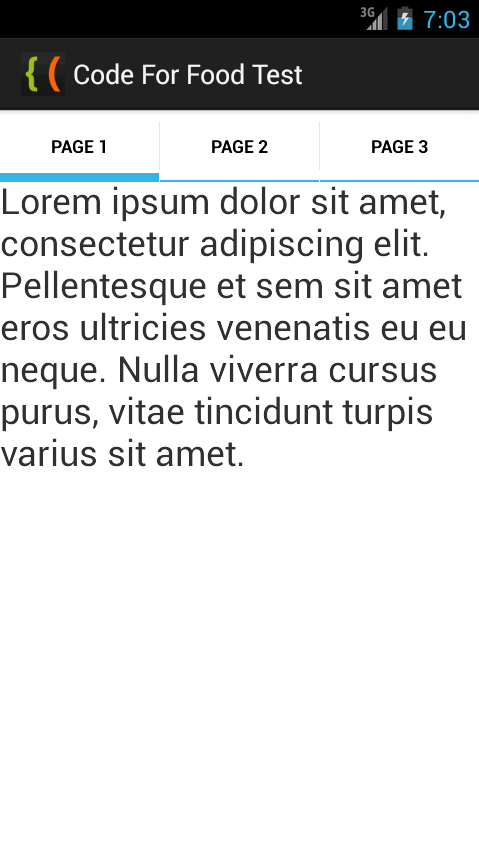
To add tabbed navigation to your application, you need to use a TabHost and a TabWidget objects. The TabHost must be the root node for the layout, which contains a TabWidget object for displaying the tabs and a FrameLayout container for displaying content of the tabs.
Go to activity_main.xml and use this code:
As you can see, Ive given the TabHost object id of tabhost. It contains a TabWidget and a FrameLayout. The ids of those are "tabs" and "tabcontent", note that they have @android prefix and no + symbol. This means that these ids will always be the same - the program expects exactly these ids for these elements.
Inside of the FrameLayout I added 3 TextViews that display text. Each tab will display one of the text views.
Go to strings.xml and update it so that it contains the 3 placeholder text pieces:
Now go to MainActivity.java class. We are now going to actually set up the navigation.
In the onCreate() function, declare a "tabs" variable that is a reference to the "tabhost" TabHost object. Call its setup() method.
The setup() method initializes the tab container. You need to call it before actually adding tabs.
After that we declare a "spec" variable, which is an intasnce of TabHost class internal class TabSpec. Set it to a new tab spec object using newTabSpec() method. Pass an id as the parameter of this function that represents this spec object.
A TabSpec is basically an information holder, which contains properties that determine how a single tab is going to look. It contains properties like tab title and its content.
Use the setContent() and setIndicator() methods for the spec object to initialize all 3 tabs. When youre done with one tab, add it to tabhost using addTab() method of the TabHost. Then create a new spec and repeat the same process, until you have all 3 tabs initialized.
Then we call the setCurrentTab() method of the tab host to set which tab should be open by default:
Full class code:
Test your application and it should look something like this:
Thanks for reading!
Read more »
To add tabbed navigation to your application, you need to use a TabHost and a TabWidget objects. The TabHost must be the root node for the layout, which contains a TabWidget object for displaying the tabs and a FrameLayout container for displaying content of the tabs.
Go to activity_main.xml and use this code:
<TabHost xmlns:android="http://schemas.android.com/apk/res/android"
    xmlns:tools="http://schemas.android.com/tools"
    android:layout_width="match_parent"
    android:layout_height="match_parent"
    android:id="@+id/tabhost"
    tools:context=".MainActivity" >

    <TabWidget
        android:id="@android:id/tabs"
        android:layout_width="match_parent"
        android:layout_height="wrap_content"
        />

    <FrameLayout
        android:id="@android:id/tabcontent"
        android:layout_width="match_parent"
        android:layout_height="match_parent"
        android:paddingTop="65px"
        >

    <TextView
        android:layout_height="wrap_content"
        android:layout_width="match_parent"
        android:text="@string/text1"
        android:id="@+id/content1"
        android:textSize="24sp"
        />

    <TextView
        android:layout_height="wrap_content"
        android:layout_width="match_parent"
        android:text="@string/text2"
        android:id="@+id/content2"
        android:textSize="24sp"
        />

    <TextView
        android:layout_height="wrap_content"
        android:layout_width="match_parent"
        android:text="@string/text3"
        android:id="@+id/content3"
        android:textSize="24sp"
        />

    </FrameLayout>

</TabHost>
As you can see, Ive given the TabHost object id of tabhost. It contains a TabWidget and a FrameLayout. The ids of those are "tabs" and "tabcontent", note that they have @android prefix and no + symbol. This means that these ids will always be the same - the program expects exactly these ids for these elements.
Inside of the FrameLayout I added 3 TextViews that display text. Each tab will display one of the text views.
Go to strings.xml and update it so that it contains the 3 placeholder text pieces:
<?xml version="1.0" encoding="utf-8"?>
<resources>

    <string name="app_name">Code For Food Test</string>
    <string name="text1">Lorem ipsum dolor sit amet, consectetur adipiscing elit. Pellentesque et sem sit amet eros ultricies venenatis eu eu neque. Nulla viverra cursus purus, vitae tincidunt turpis varius sit amet.</string>
    <string name="text2">Duis ut sapien sit amet massa dapibus molestie. Mauris condimentum nisi sit amet turpis molestie in tempor neque interdum.</string>
    <string name="text3">Quisque eu justo nisi, eu interdum felis. Nam vel mi nibh. Curabitur egestas ornare mi, vel convallis ligula tempor vitae.</string>
    <string name="menu_settings">Settings</string>

</resources>
Now go to MainActivity.java class. We are now going to actually set up the navigation.
In the onCreate() function, declare a "tabs" variable that is a reference to the "tabhost" TabHost object. Call its setup() method.
TabHost tabs = (TabHost)findViewById(R.id.tabhost);
tabs.setup();
The setup() method initializes the tab container. You need to call it before actually adding tabs.
After that we declare a "spec" variable, which is an intasnce of TabHost class internal class TabSpec. Set it to a new tab spec object using newTabSpec() method. Pass an id as the parameter of this function that represents this spec object.
TabHost.TabSpec spec = tabs.newTabSpec("tab1");
A TabSpec is basically an information holder, which contains properties that determine how a single tab is going to look. It contains properties like tab title and its content.
Use the setContent() and setIndicator() methods for the spec object to initialize all 3 tabs. When youre done with one tab, add it to tabhost using addTab() method of the TabHost. Then create a new spec and repeat the same process, until you have all 3 tabs initialized.
spec.setContent(R.id.content1);
spec.setIndicator("Page 1");
tabs.addTab(spec);

spec = tabs.newTabSpec("tab2");
spec.setContent(R.id.content2);
spec.setIndicator("Page 2");
tabs.addTab(spec);

spec = tabs.newTabSpec("tab3");
spec.setContent(R.id.content3);
spec.setIndicator("Page 3");
tabs.addTab(spec);
Then we call the setCurrentTab() method of the tab host to set which tab should be open by default:
tabs.setCurrentTab(0);
Full class code:
package com.kircode.codeforfood_test;

import android.app.Activity;
import android.os.Bundle;
import android.view.Menu;
import android.widget.TabHost;

public class MainActivity extends Activity{

@Override
protected void onCreate(Bundle savedInstanceState) {
super.onCreate(savedInstanceState);
setContentView(R.layout.activity_main);

TabHost tabs = (TabHost)findViewById(R.id.tabhost);
tabs.setup();

TabHost.TabSpec spec = tabs.newTabSpec("tab1");

spec.setContent(R.id.content1);
spec.setIndicator("Page 1");
tabs.addTab(spec);

spec = tabs.newTabSpec("tab2");
spec.setContent(R.id.content2);
spec.setIndicator("Page 2");
tabs.addTab(spec);

spec = tabs.newTabSpec("tab3");
spec.setContent(R.id.content3);
spec.setIndicator("Page 3");
tabs.addTab(spec);

tabs.setCurrentTab(0);
}

@Override
public boolean onCreateOptionsMenu(Menu menu) {
// Inflate the menu; this adds items to the action bar if it is present.
getMenuInflater().inflate(R.menu.activity_main, menu);
return true;
}

}
Test your application and it should look something like this:
Thanks for reading!
Android beginner tutorial Part 38 Toast notifications
In this tutorial well learn about Toast notifications.
There are two types of notifications in Android - Toasts and Status Bar Notifications (often called just Notifications). The difference between the two is that the Toast notifications just appear somewhere on the screen for a certain period of time, and do not require user interaction. The Notifications appear in the status bar, and can be interacted with.
Today well learn about Toasts. The Toast class is a class for displaying native notifications for a set period of time. They are very simple to implement, and thats why are often used in debugging.
Creating a Toast requires calling 2 methods of a Toast object - makeText() and show(). The makeText() function requires three parameters - context, message and displaying time.
The third parameter can be set to two constants - Toast.LENGTH_SHORT or Toast.LENGTH_LONG. You can also just set the value to a number of milliseconds.
The Toast message appears in the bottom part of the screen by default, but it is possible to change the position using the setGravity() method. It has 3 parameters, all of them are integers.
The first one is a constant that determines where the message box is relatively located. The constants are declared in the Gravity class. For example, the values can be set to Gravity.CENTER or Gravity.TOP To combine two constants, use Gravity.TOP|Gravity.LEFT.
The second and third parameters are used to set X and Y offsets.
So, by setting the gravity like this:
...it will be positioned in the center of the screen. You can then move it using the offset values, for example, you can move it 10 pixels to the right by using:
Lets create an example application. The Activity layout will consist of just a button:
The MainActivity.java class handles the click event of the button and displays a Toast notification when its clicked:
The results look like this (with notification on screen):
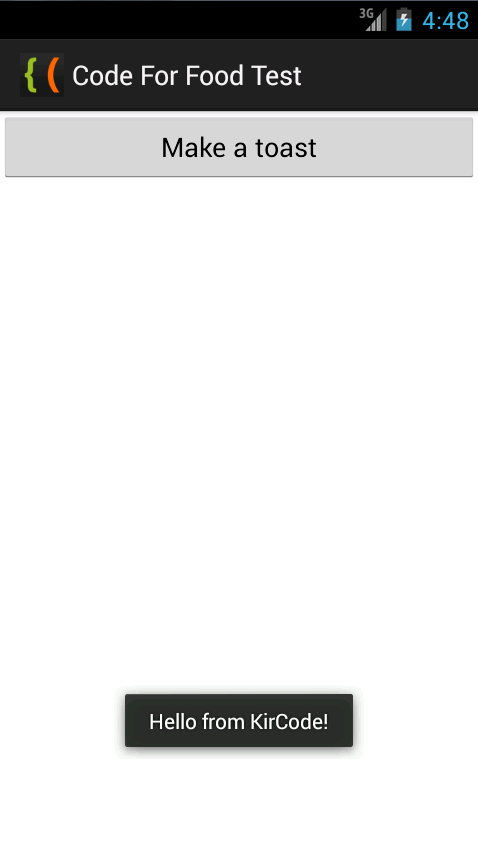
Thanks for reading!
Read more »
There are two types of notifications in Android - Toasts and Status Bar Notifications (often called just Notifications). The difference between the two is that the Toast notifications just appear somewhere on the screen for a certain period of time, and do not require user interaction. The Notifications appear in the status bar, and can be interacted with.
Today well learn about Toasts. The Toast class is a class for displaying native notifications for a set period of time. They are very simple to implement, and thats why are often used in debugging.
Creating a Toast requires calling 2 methods of a Toast object - makeText() and show(). The makeText() function requires three parameters - context, message and displaying time.
Context context = getApplicationContext();
Toast toast = Toast.makeText(context, "Hello from KirCode!", Toast.LENGTH_SHORT);
toast.show();
The third parameter can be set to two constants - Toast.LENGTH_SHORT or Toast.LENGTH_LONG. You can also just set the value to a number of milliseconds.
The Toast message appears in the bottom part of the screen by default, but it is possible to change the position using the setGravity() method. It has 3 parameters, all of them are integers.
The first one is a constant that determines where the message box is relatively located. The constants are declared in the Gravity class. For example, the values can be set to Gravity.CENTER or Gravity.TOP To combine two constants, use Gravity.TOP|Gravity.LEFT.
The second and third parameters are used to set X and Y offsets.
So, by setting the gravity like this:
toast.setGravity(Gravity.CENTER, 0, 0);
...it will be positioned in the center of the screen. You can then move it using the offset values, for example, you can move it 10 pixels to the right by using:
toast.setGravity(Gravity.CENTER, 10, 0);
Lets create an example application. The Activity layout will consist of just a button:
<LinearLayout xmlns:android="http://schemas.android.com/apk/res/android"
    xmlns:tools="http://schemas.android.com/tools"
    android:layout_width="match_parent"
    android:layout_height="match_parent"
    android:orientation="vertical"
    tools:context=".MainActivity" >

<Button
    android:id="@+id/testButton"
    android:layout_width="fill_parent"
    android:layout_height="wrap_content"
    android:text="Make a toast"
    />

</LinearLayout>
The MainActivity.java class handles the click event of the button and displays a Toast notification when its clicked:
package com.kircode.codeforfood_test;

import android.app.Activity;
import android.content.Context;
import android.os.Bundle;
import android.view.Menu;
import android.view.View;
import android.widget.Button;
import android.widget.Toast;

public class MainActivity extends Activity{

private Context context;

@Override
protected void onCreate(Bundle savedInstanceState) {
super.onCreate(savedInstanceState);
setContentView(R.layout.activity_main);

Button button = (Button)findViewById(R.id.testButton);
context = getApplicationContext();

button.setOnClickListener(new View.OnClickListener() {

@Override
public void onClick(View v) {
Toast toast = Toast.makeText(context, "Hello from KirCode!", Toast.LENGTH_SHORT);
toast.show();
}
});
}

@Override
public boolean onCreateOptionsMenu(Menu menu) {
// Inflate the menu; this adds items to the action bar if it is present.
getMenuInflater().inflate(R.menu.activity_main, menu);
return true;
}

}
The results look like this (with notification on screen):
Thanks for reading!
Subscribe to:
Posts (Atom)