Showing posts with label android. Show all posts
Showing posts with label android. Show all posts
Thursday, February 12, 2015
CppDroid – C C IDE for Android Platform
CppDroid is a simple C/C++ IDE for Android platform which is focused on learning programming languages and libraries. I found this IDE while searching on the internet for C4droid alternatives. It can be an awesome alternative of C4droid compiler. By using this app you can easily write and run C/C++ programs on android device. Apart from writing and running programs you can get many C/C++ examples and tutorials inside it. So before downloading let’s take a look on some features of CppDroid.

Also Read: C4droid Apk Free Download - C/C++ Compiler for Android Platform
Features of CppDroid
- Code complete
- Real-time diagnostics (warnings and errors) and fixes
- File and tutorial navigator (variables, methods, etc)
- Static analysisSmart syntax highlighting
- Portrait/landscape user interface
- Auto indentation and auto pairing (configurable)
- Configurable code syntax highlighting (themes)
- Compile C/C++ code (no root required)
- Works offline (built-in compiler, no need of internet connection)
- Great C/C++ code examples included
- Detailed C++ tutorial and learn guide included
- Add-ons manager and auto updates
- Dropbox support
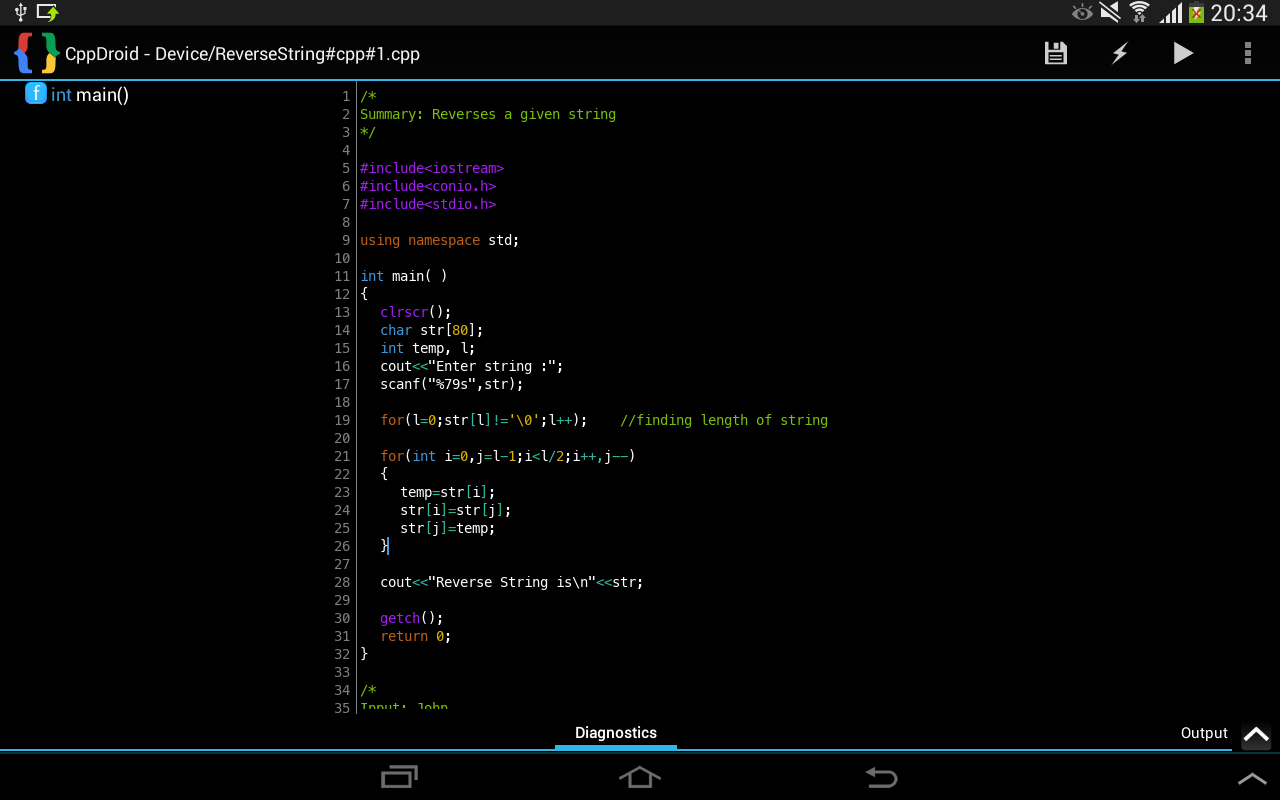
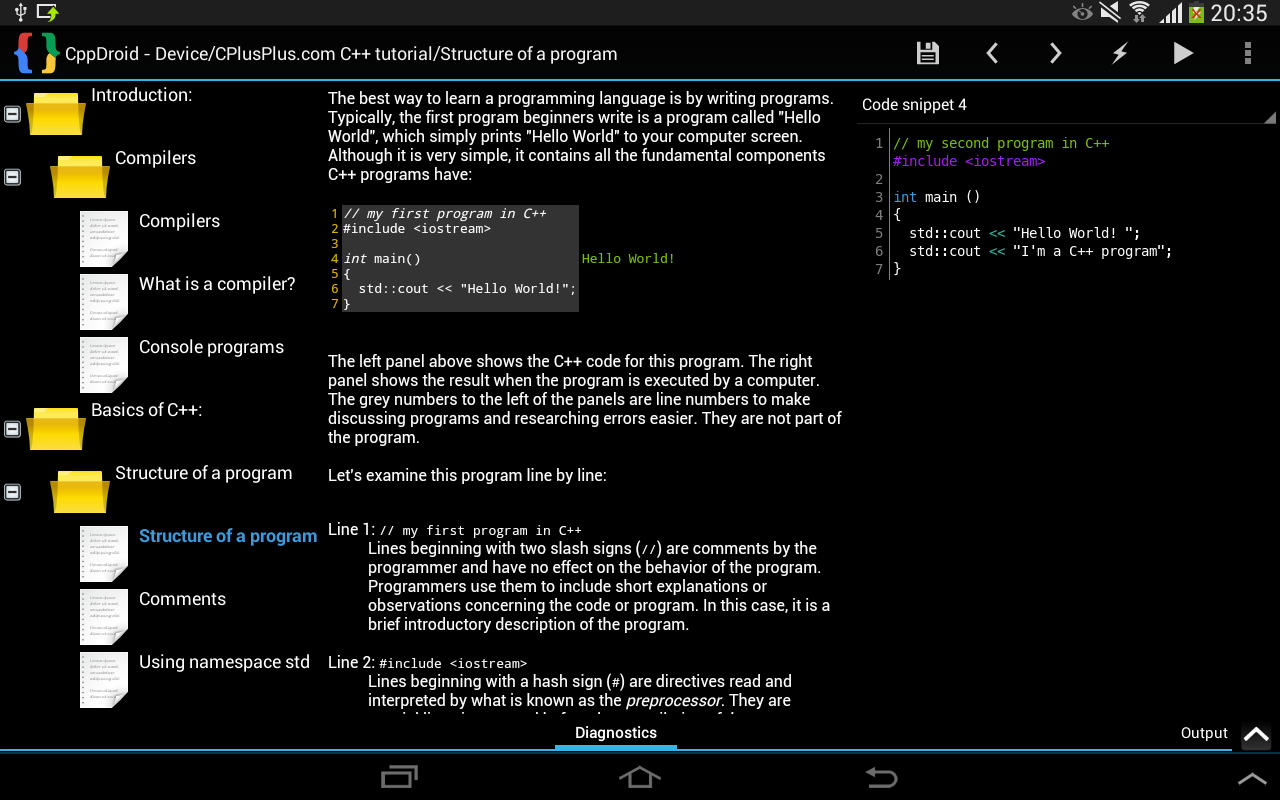
When you run CppDroid for first time, it will extract SDK which is about 150MB in size and also download and extract many examples and tutorials. Approximately 190MB of internal storage space is required to install this app. This cant be moved to external sd card because of android security. Just download CppDroid for free from below link. The link will redirect you to google play store.
Download CppDroid – C/C++ IDE for Android Platform
Just try CppDroid and share your experience with us.

Thursday, February 5, 2015
Android beginner tutorial Part 37 GridView widget
In this tutorial well learn how to display text data using GridView widget.
The GridView component displays data in a table structure.
There are a few properties that we can use to customize the appearance of the widget.
The first one is android:numColumns - it determines how many columns the grid has. It can be set to "auto_fit" to fit as many columns as possible.
The android:verticalSpacing and android:horizontalSpacing variables determine the horizontal and vertical spacing between the cells.
The android:columnWidth property sets the width of each column.
The android:stretchMode property determines how the grid is stretched. You can set it to columnWidth to increase the cell width if there is any extra space left, or to spacingWidth to increase the spacing between the cells. Set to none to disable stretching.
Go to activity_main.xml layout file and create a simple layout with a TextView and a GridView:
We need to have an array declared in our strings.xml file. Its the one from the previous tutorials:
Go to MainActivity.java class. Implement OnItemClickListener class:
Declare text and grid variables to later reference the TextView and GridView objects:
Set their value sin onCreate() function. Then retreive the array from the strings.xml and apply it to an array adapter. Apply this adapter to this activity using setAdapter() method, then call setOnItemClickListener() method to add a click listener:
Add a onItemClick() function, which handles the item click event. Display the selected item in the text field:
Full code:
The results look like this:

Thanks for reading!
Read more »
The GridView component displays data in a table structure.
There are a few properties that we can use to customize the appearance of the widget.
The first one is android:numColumns - it determines how many columns the grid has. It can be set to "auto_fit" to fit as many columns as possible.
The android:verticalSpacing and android:horizontalSpacing variables determine the horizontal and vertical spacing between the cells.
The android:columnWidth property sets the width of each column.
The android:stretchMode property determines how the grid is stretched. You can set it to columnWidth to increase the cell width if there is any extra space left, or to spacingWidth to increase the spacing between the cells. Set to none to disable stretching.
Go to activity_main.xml layout file and create a simple layout with a TextView and a GridView:
<LinearLayout xmlns:android="http://schemas.android.com/apk/res/android"
    xmlns:tools="http://schemas.android.com/tools"
    android:layout_width="match_parent"
    android:layout_height="match_parent"
    android:orientation="vertical"
    tools:context=".MainActivity" >

<TextView
    android:id="@+id/text"
    android:layout_width="fill_parent"
    android:layout_height="wrap_content" />

<GridView
    android:id="@+id/grid"
    android:layout_width="fill_parent"
    android:layout_height="fill_parent"
    android:verticalSpacing="35dp"
    android:horizontalSpacing="5dp"
    android:numColumns="auto_fit"
    android:columnWidth="100dp"
    android:stretchMode="columnWidth"
    android:gravity="center"
    />

</LinearLayout>
We need to have an array declared in our strings.xml file. Its the one from the previous tutorials:
<?xml version="1.0" encoding="utf-8"?>
<resources>

    <string name="app_name">Code For Food Test</string>
    <string name="menu_settings">Settings</string>
    <string-array name="choices_array">
        <item>One</item>
        <item>Two</item>
        <item>Three</item>
        <item>Four</item>
        <item>Five</item>
        <item>Seven</item>
        <item>Eight</item>
        <item>Nine</item>
        <item>Ten</item>
    </string-array>

</resources>
Go to MainActivity.java class. Implement OnItemClickListener class:
public class MainActivity extends Activity implements OnItemClickListener{
Declare text and grid variables to later reference the TextView and GridView objects:
private TextView text;
private GridView grid;
Set their value sin onCreate() function. Then retreive the array from the strings.xml and apply it to an array adapter. Apply this adapter to this activity using setAdapter() method, then call setOnItemClickListener() method to add a click listener:
@Override
protected void onCreate(Bundle savedInstanceState) {
super.onCreate(savedInstanceState);
setContentView(R.layout.activity_main);

grid = (GridView)findViewById(R.id.grid);
text = (TextView)findViewById(R.id.text);

String[] choices = getResources().getStringArray(R.array.choices_array);

ArrayAdapter<String> arrayAdapter = new ArrayAdapter<String>(this, android.R.layout.simple_list_item_1, choices);
grid.setAdapter(arrayAdapter);
grid.setOnItemClickListener(this);
}
Add a onItemClick() function, which handles the item click event. Display the selected item in the text field:
public void onItemClick(AdapterView<?> parent, View view, int pos, long id) {
    text.setText("The selected item is " + parent.getItemAtPosition(pos).toString());
    }
Full code:
package com.kircode.codeforfood_test;

import android.app.Activity;
import android.os.Bundle;
import android.view.Menu;
import android.view.View;
import android.widget.AdapterView;
import android.widget.AdapterView.OnItemClickListener;
import android.widget.ArrayAdapter;
import android.widget.GridView;
import android.widget.TextView;

public class MainActivity extends Activity implements OnItemClickListener{

private TextView text;
private GridView grid;

@Override
protected void onCreate(Bundle savedInstanceState) {
super.onCreate(savedInstanceState);
setContentView(R.layout.activity_main);

grid = (GridView)findViewById(R.id.grid);
text = (TextView)findViewById(R.id.text);

String[] choices = getResources().getStringArray(R.array.choices_array);

ArrayAdapter<String> arrayAdapter = new ArrayAdapter<String>(this, android.R.layout.simple_list_item_1, choices);
grid.setAdapter(arrayAdapter);
grid.setOnItemClickListener(this);
}

public void onItemClick(AdapterView<?> parent, View view, int pos, long id) {
    text.setText("The selected item is " + parent.getItemAtPosition(pos).toString());
    }

@Override
public boolean onCreateOptionsMenu(Menu menu) {
// Inflate the menu; this adds items to the action bar if it is present.
getMenuInflater().inflate(R.menu.activity_main, menu);
return true;
}

}
The results look like this:
Thanks for reading!
KOCASO M776 MediaTek 7 inch Android Tablet Pc Firmware
KOCASO M776 MediaTek MT6577 7 inch Dual Sim Android Tablet Firmware
Tablets Recovery , Tablet PC Restore , Android Tablet Upgrade Instructions
 |
| Kocaso M776 Tablet Pc |
Tablet Pc Review :
Kocaso is brand of Global Phoenix Computer Technologies , Kocaso M776 Tablet is 7 inch High resolution Tablet with multiple functions powered by Ice Cream Sandwich , Supporting 2G/3G Bands with the power of dual core Cortex A9 Processor . Available in 4 different colors. The great thing is about Kocaso tablet is Support. Firmware support available , Customer services are available which make brand professional and reliable. In my opinion Kocaso is reliable brand to buy.
if you want to buy a tablet kindly visit official page
Where to buy Kocaso tablet Pc ?
All trademarks are property of their respected owners.
if you want to buy a tablet kindly visit official page
Where to buy Kocaso tablet Pc ?
All trademarks are property of their respected owners.
Company Warranty :
One year warranty cover repair or replacement of defective products.
Wiki Allwinner:-
Read Article About MediaTek
Specifications:
LCD | 7" Capacitive 5 Point Multi Touch Screen |
Screen Resolution | 1024 x 600 Pix |
Processor | upto 1.0 Ghz Dual Core Cortex A9 |
Chipset / Boxchip | MediaTek |
RAM | 512 Mb DDR3 |
Built in Memory | 4 GB |
External Memory | Support Micro Card (Max 32GB) |
Wifi | 802.11 b/g/n supported |
Other Functions | Bluetooth , GPS , FM Radio |
GSM | Support 2G & 3G |
Camera | 0.3 Megapixel front , 2 mp rear cam |
HDMI /3g Dongle | HDMI ,Support 3G Dongle |
Microphone | Built IN |
Weight | 320 g |
Android Version | 4.1 |
4 Hours Battery Time |
Does I really need to restore / flash my Tablet PC :
You must restore tablet pc in case of following situations . but it is highly recommended to use multi tool first . If not worked then flash your tablet stock rom.
1. Forgotten Pattern Lock on Android Tablets. 2.Too many pattern attempts / Reset user lock.3. Tablets PC stuck on Gmail account.4. Android Tablet PC stuck on Android logo.5. Tablet Android hang on start-up / Multiple errors generating by OS.
6. Google play store having problems or generating errors.
7.Upgrading to new Android OS.you can use this Android Tablet firmware, ROM to restore your Android China tablets to generic firmwares or upgrades . Make sure to charge battery upto 60%. Power failure during flashing may result dead or broken tablets.Note : Flashing tablet Stock firmware should be last option.
6. Google play store having problems or generating errors.
7.Upgrading to new Android OS.
Tablet installation Instructions:
Flashing Tools:
Download: Mediatek Flashing Tools & Drivers
Tutorials :
how to flash : Flashing Tutorial for MTK ChipsFollowing files include Flashing Tools and Microsd upgrade method.
Firmware Download
Download Official Firmware
Android beginner tutorial Part 58 Send and receive data between Activities
In this tutorial well learn how to transfer data between two Activities.
We are going to have two activities - MainActivity and SecondActivity. Ive already covered how to create secondary Activities in the tutorial about Intents. I explained how to do that in detail in that tutorial, so if you followed my tutorials you should be able to do that. A reminder: add an Activity in the Manifest XML file and add a SecondActivity.java class and an activity_second.xml layout.
The main activity is going to have a button that opens a new Activity. However, it launches it with an intention to receive a result. This is done using a startActivityForResult() method. By doing it that way we tell our main activity to expect a result from the Activity were launching. In the second activity well have an EditText input and a button. When the button is pressed, the data in the text field is sent back to the main activity and the second activity is closed.
When the main activity receives the message, it displays it in a toast.
Lets see how we are going to do this. Firstly, go to activity_main.xml layout and add a button:
In MainActivity.java declare an ID for the request:
Use it when you call startActivityForResult() in the click event handler of the button:
The request is sent, but what about receiving the results?
Create a function onActivityResult(). Call its superclass and then check if resultCode parameter equals RESULT_OK. That means weve received a result as expected.
Inside the if...statement declare an "extras" variable, which is a Bundle type object and gets its values from data.getExtras().
Then we check if requestCode parameters value equals IDM_TEST (the id we passed when requesting the result), and if so, toast the results using the extras object:
Full MainActivity.java code:
The activity_second.xml layout has an EditText object and a Button:
In SecondActivity.java class, we only need to handle the button. When it is clicked, we create an intent and use a method called setResult(). To pass the values to the parent activity we can use the putExtra() method of the intent. It has 2 parameters - name and value.
Thats all! Now you can go to the second activity from your main one, enter some text, return to the main activity using the button and see the main activity display the data received from the second one.
Thanks for reading!
Read more »
We are going to have two activities - MainActivity and SecondActivity. Ive already covered how to create secondary Activities in the tutorial about Intents. I explained how to do that in detail in that tutorial, so if you followed my tutorials you should be able to do that. A reminder: add an Activity in the Manifest XML file and add a SecondActivity.java class and an activity_second.xml layout.
The main activity is going to have a button that opens a new Activity. However, it launches it with an intention to receive a result. This is done using a startActivityForResult() method. By doing it that way we tell our main activity to expect a result from the Activity were launching. In the second activity well have an EditText input and a button. When the button is pressed, the data in the text field is sent back to the main activity and the second activity is closed.
When the main activity receives the message, it displays it in a toast.
Lets see how we are going to do this. Firstly, go to activity_main.xml layout and add a button:
<LinearLayout xmlns:android="http://schemas.android.com/apk/res/android"
    xmlns:tools="http://schemas.android.com/tools"
    android:layout_width="match_parent"
    android:layout_height="match_parent"
    android:orientation="vertical"
    tools:context=".MainActivity" >

    <TextView android:layout_width="match_parent"
        android:layout_height="wrap_content"
        android:textSize="32sp"
        android:text="First Activity"
        />

    <Button android:id="@+id/goButton"
        android:layout_width="match_parent"
        android:layout_height="wrap_content"
        android:text="Launch Second Activity"
        />

</LinearLayout>
In MainActivity.java declare an ID for the request:
private static final int IDM_TEST = 101;
Use it when you call startActivityForResult() in the click event handler of the button:
@Override
protected void onCreate(Bundle savedInstanceState) {
super.onCreate(savedInstanceState);
setContentView(R.layout.activity_main);

final Button btn = (Button)findViewById(R.id.goButton);
btn.setOnClickListener(new View.OnClickListener() {

@Override
public void onClick(View v) {
Intent intent = new Intent();
intent.setClass(getApplicationContext(), SecondActivity.class);
startActivityForResult(intent, IDM_TEST);
}
});
}
The request is sent, but what about receiving the results?
Create a function onActivityResult(). Call its superclass and then check if resultCode parameter equals RESULT_OK. That means weve received a result as expected.
Inside the if...statement declare an "extras" variable, which is a Bundle type object and gets its values from data.getExtras().
Then we check if requestCode parameters value equals IDM_TEST (the id we passed when requesting the result), and if so, toast the results using the extras object:
protected void onActivityResult(int requestCode, int resultCode, Intent data){
super.onActivityResult(requestCode, resultCode, data);
if(resultCode == RESULT_OK){
Bundle extras = data.getExtras();
// handle results
if(requestCode == IDM_TEST){
Toast toast = Toast.makeText(MainActivity.this, extras.getString("UserText"), Toast.LENGTH_SHORT);
toast.show();
}
}
}
Full MainActivity.java code:
package com.kircode.codeforfood_test;

import android.app.Activity;
import android.content.Intent;
import android.os.Bundle;
import android.view.View;
import android.widget.Button;
import android.widget.Toast;

public class MainActivity extends Activity{

private static final int IDM_TEST = 101;

@Override
protected void onCreate(Bundle savedInstanceState) {
super.onCreate(savedInstanceState);
setContentView(R.layout.activity_main);

final Button btn = (Button)findViewById(R.id.goButton);
btn.setOnClickListener(new View.OnClickListener() {

@Override
public void onClick(View v) {
Intent intent = new Intent();
intent.setClass(getApplicationContext(), SecondActivity.class);
startActivityForResult(intent, IDM_TEST);
}
});
}

protected void onActivityResult(int requestCode, int resultCode, Intent data){
super.onActivityResult(requestCode, resultCode, data);
if(resultCode == RESULT_OK){
Bundle extras = data.getExtras();
// handle results
if(requestCode == IDM_TEST){
Toast toast = Toast.makeText(MainActivity.this, extras.getString("UserText"), Toast.LENGTH_SHORT);
toast.show();
}
}
}

}
The activity_second.xml layout has an EditText object and a Button:
<LinearLayout xmlns:android="http://schemas.android.com/apk/res/android"
    xmlns:tools="http://schemas.android.com/tools"
    android:layout_width="match_parent"
    android:layout_height="match_parent"
    android:orientation="vertical"
    tools:context=".MainActivity" >

    <TextView android:layout_width="match_parent"
        android:layout_height="wrap_content"
        android:textSize="32sp"
        android:text="Second Activity"
        />

    <EditText android:layout_width="match_parent"
        android:layout_height="wrap_content"
        android:hint="Write something here..."
        android:id="@+id/editText"
        />

    <Button android:id="@+id/backButton"
        android:layout_width="match_parent"
        android:layout_height="wrap_content"
        android:text="OK"
        />

</LinearLayout>
In SecondActivity.java class, we only need to handle the button. When it is clicked, we create an intent and use a method called setResult(). To pass the values to the parent activity we can use the putExtra() method of the intent. It has 2 parameters - name and value.
package com.kircode.codeforfood_test;

import android.app.Activity;
import android.content.Intent;
import android.os.Bundle;
import android.view.View;
import android.widget.Button;
import android.widget.EditText;

public class SecondActivity extends Activity{


@Override
protected void onCreate(Bundle savedInstanceState) {
super.onCreate(savedInstanceState);
setContentView(R.layout.activity_second);

final Button btn = (Button)findViewById(R.id.backButton);
btn.setOnClickListener(new View.OnClickListener() {

@Override
public void onClick(View v) {
EditText text = (EditText)findViewById(R.id.editText);

Intent intent = new Intent();
intent.putExtra("UserText", text.getText().toString());
setResult(RESULT_OK, intent);
finish();
}
});
}

}
Thats all! Now you can go to the second activity from your main one, enter some text, return to the main activity using the button and see the main activity display the data received from the second one.
Thanks for reading!
Wednesday, February 4, 2015
Android beginner tutorial Part 69 Queries and Cursors
In this tutorial we will add our Content Provider to the Manifest xml and learn a bit about queries and cursors.
To make a Content Provider visible and usable by the system and your own application, we need to add it to the AndroidManifest.xml file of our project.
Add a new node provider to the application node, set values for two of its attributes - android:name and android:authorities. The name attribute points to the custom ContentProvider class, and the authorities value is the URI address of the provider:
To send SQL queries to the content provider from your application, use the ContentResolver object that is obtainable using getContentResolver() method.
For example, this way we can send a query that selects all names and phones of the people in our database.
The query() method, for instance, has 5 parameters. Those are the URI address of the provider, the projection (list of columns to return, if null - everything is returned), selection (what would normally be written after "WHERE" in an SQL command), selectionArgs (extra functionality for selection parameter) and sortOrder (what would normally be written after "ORDER BY").
The Cursor object thats returned to us is a helpful tool for navigating through the results of the query. It has a set of useful methods like moveToFirst(), moveToLast(), moveToNext(), moveToPrevious(), moveToPosition(), getToPosition() and more.
Since the Cursor lines up all the results in some sort of a row and moves back and forth displaying one at a time, there are a few methods that let us know where exactly the cursor is currently located. These methods are isFirst(), isLast(), isBeforeFirst() and isAfterLast().
The insert(), update() and delete() methods are also all called from the ContentResolver object, but they dont result any Cusors. They are even simpler commands that basically insert, update and delete rows in a table.
Thats all for today.
Thanks for reading!
Read more »
To make a Content Provider visible and usable by the system and your own application, we need to add it to the AndroidManifest.xml file of our project.
Add a new node provider to the application node, set values for two of its attributes - android:name and android:authorities. The name attribute points to the custom ContentProvider class, and the authorities value is the URI address of the provider:
        <provider
            android:name="com.kircode.codeforfood_test.myContentProvider"
            android:authorities="com.kircode.codeforfood_test.contactprovider">
        </provider>
To send SQL queries to the content provider from your application, use the ContentResolver object that is obtainable using getContentResolver() method.
For example, this way we can send a query that selects all names and phones of the people in our database.
String[] columns = new String[] {myDbHelper.NAME, myDbHelper.PHONE};
ContentResolver resolver = getContentResolver();
Cursor cursor = resolver.query(CONTENT_URI, columns, null, null, null);
The query() method, for instance, has 5 parameters. Those are the URI address of the provider, the projection (list of columns to return, if null - everything is returned), selection (what would normally be written after "WHERE" in an SQL command), selectionArgs (extra functionality for selection parameter) and sortOrder (what would normally be written after "ORDER BY").
The Cursor object thats returned to us is a helpful tool for navigating through the results of the query. It has a set of useful methods like moveToFirst(), moveToLast(), moveToNext(), moveToPrevious(), moveToPosition(), getToPosition() and more.
Since the Cursor lines up all the results in some sort of a row and moves back and forth displaying one at a time, there are a few methods that let us know where exactly the cursor is currently located. These methods are isFirst(), isLast(), isBeforeFirst() and isAfterLast().
The insert(), update() and delete() methods are also all called from the ContentResolver object, but they dont result any Cusors. They are even simpler commands that basically insert, update and delete rows in a table.
Thats all for today.
Thanks for reading!
Tuesday, February 3, 2015
Assistant Android App to use in daily life
Assistant
Download Android app free
Make your life easy with Android Apps.
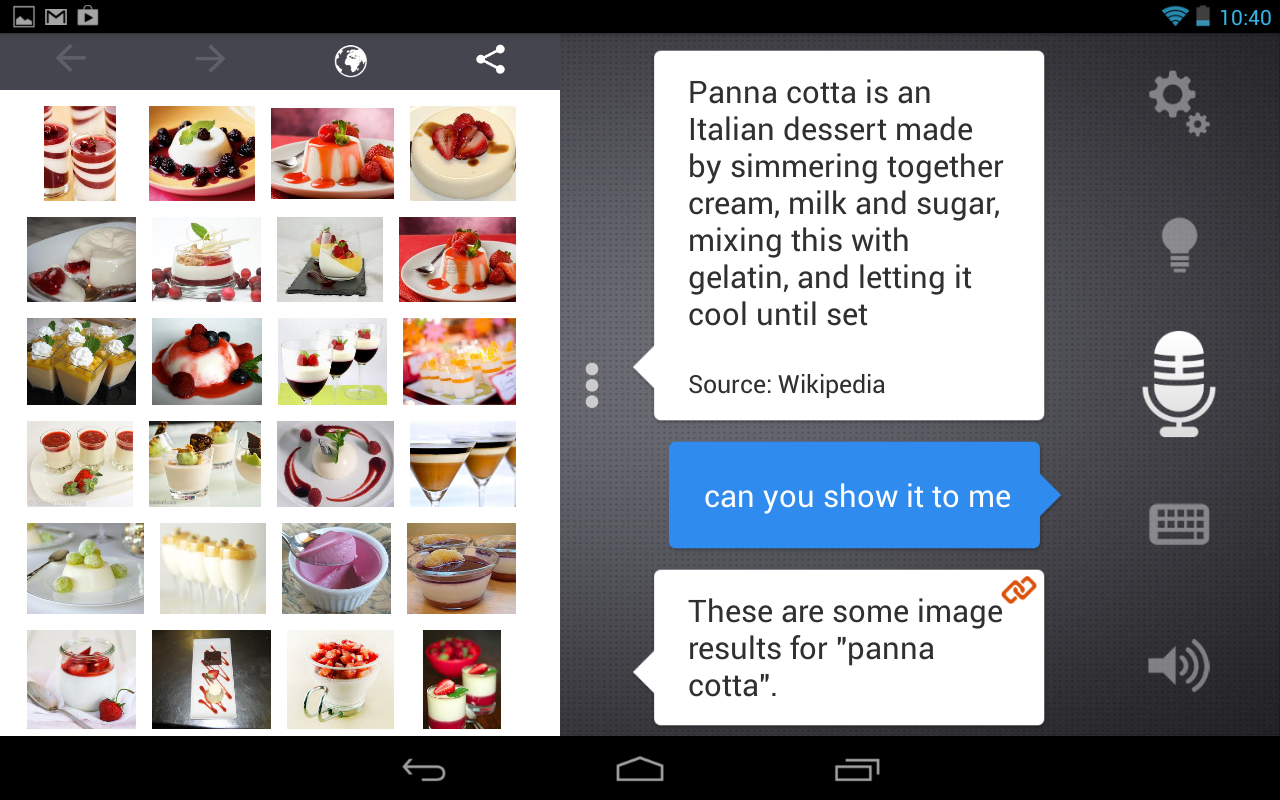
You can compare this android app with Siri and many others. its not less . User rating and reviews are good about Assistant.


Download From Play Store.
BACKSTAB apk data Download Paid Android Games For Free
BACKSTAB HD
Android Game for Smartphones and Tablets.
Download Android Games

Henry Blake was the honorable officer in britain navy once. But now he is a broken man whose life is stripped away,sheltered,imprisoned ,dark . His wife and his life was taken away from him. Help him to find justice ,revenge while playing game with technics. Climbing , jumping,sneaking to reach the target. Find different combos,deadly fighting skills to defeat your enemies and anyone who came into the way to stop . Android game BackStab is based on revenge and finding justice. Magnificent 3D environment to explore the full island freely. The Android game will allow you to explore the 18th century caribbean island.
Download paid android game for free to enjoy the stunning graphics and amazing story full with revenge.
ScreenShots BackStab Game.


Installation Requirements :
Android OS: 2.1 and Up
Version : 1.2.6
apk size:1.5 M
Data size: 594MB
Author : Gameloft
image by google play store.
Download Android Games from Google Play Store
All the characters,fiction,logos,ideas are property of gameloft and their respected owners.
Android beginner tutorial Part 40 AlertDialog class
Today well learn about the AlertDialog class.
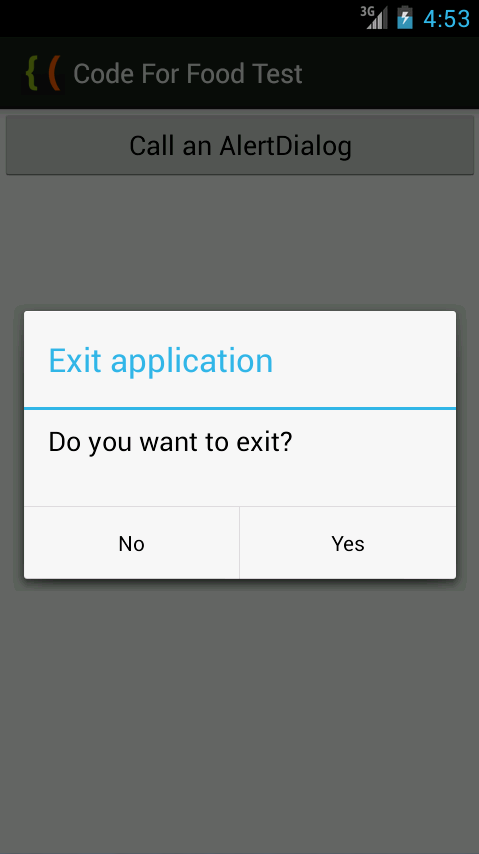
There are many types of Dialogs in Android - pop up windows that inform, confirm or request data from the user. Today well take a look at the AlertDialog class - a simple pop up dialog window that can display a title, a text message, and up to 3 buttons - a positive one, a negative one and a neutral one. Its also possible to display more complex things here like lists and switches, but well get to that later.
First, go to the main Activity layout XML and add a button.
Now go to MainActivity.java class. Here, create a reference to the button in the layout and add a click event listener for it.
In the onClick handler function of the listener, well create the AlertDialog. First, declare a builder variable of AlertDialog.Builder class.
Now we can customize it. I want the dialog window to have 2 buttons - Yes and No, and the Yes button closes the application, while the No button closes just the dialog.
Set the title and message of the dialog:
Create a positive button using setPositiveButton() method. It has 2 parameters - label of the button and OnClickListener of the button. We can close the application using MainActivity.this.finish():
Negative button is created similarly:
Then we can make it impossible for the user to close the dialog by pressing "Back" button on their device. Do this using the setCancelable() method:
Create an AlertDialog instance, set its value to builder.create(). Then use show() method of the dialog to display it.
Full MainActivity.java code:
The results look like this:
Thanks for reading!
Read more »
There are many types of Dialogs in Android - pop up windows that inform, confirm or request data from the user. Today well take a look at the AlertDialog class - a simple pop up dialog window that can display a title, a text message, and up to 3 buttons - a positive one, a negative one and a neutral one. Its also possible to display more complex things here like lists and switches, but well get to that later.
First, go to the main Activity layout XML and add a button.
<LinearLayout xmlns:android="http://schemas.android.com/apk/res/android"
    xmlns:tools="http://schemas.android.com/tools"
    android:layout_width="match_parent"
    android:layout_height="match_parent"
    android:orientation="vertical"
    tools:context=".MainActivity" >

<Button
    android:id="@+id/testButton"
    android:layout_width="fill_parent"
    android:layout_height="wrap_content"
    android:text="Call an AlertDialog"
    />

</LinearLayout>
Now go to MainActivity.java class. Here, create a reference to the button in the layout and add a click event listener for it.
In the onClick handler function of the listener, well create the AlertDialog. First, declare a builder variable of AlertDialog.Builder class.
AlertDialog.Builder builder = new AlertDialog.Builder(MainActivity.this);
Now we can customize it. I want the dialog window to have 2 buttons - Yes and No, and the Yes button closes the application, while the No button closes just the dialog.
Set the title and message of the dialog:
builder.setTitle("Exit application");
builder.setMessage("Do you want to exit?");
Create a positive button using setPositiveButton() method. It has 2 parameters - label of the button and OnClickListener of the button. We can close the application using MainActivity.this.finish():
builder.setPositiveButton("Yes", new DialogInterface.OnClickListener() {
@Override
public void onClick(DialogInterface dialog, int which) {
MainActivity.this.finish();
}
});
Negative button is created similarly:
builder.setNegativeButton("No", new DialogInterface.OnClickListener() {
@Override
public void onClick(DialogInterface dialog, int which) {
dialog.cancel();
}
});
Then we can make it impossible for the user to close the dialog by pressing "Back" button on their device. Do this using the setCancelable() method:
builder.setCancelable(false);
Create an AlertDialog instance, set its value to builder.create(). Then use show() method of the dialog to display it.
AlertDialog myDialog = builder.create();
myDialog.show();
Full MainActivity.java code:
package com.kircode.codeforfood_test;

import android.app.Activity;
import android.app.AlertDialog;
import android.content.DialogInterface;
import android.os.Bundle;
import android.view.Menu;
import android.view.View;
import android.widget.Button;

public class MainActivity extends Activity{

@Override
protected void onCreate(Bundle savedInstanceState) {
super.onCreate(savedInstanceState);
setContentView(R.layout.activity_main);

Button button = (Button)findViewById(R.id.testButton);

button.setOnClickListener(new View.OnClickListener() {

@Override
public void onClick(View v) {
AlertDialog.Builder builder = new AlertDialog.Builder(MainActivity.this);
builder.setTitle("Exit application");
builder.setMessage("Do you want to exit?");
builder.setPositiveButton("Yes", new DialogInterface.OnClickListener() {
@Override
public void onClick(DialogInterface dialog, int which) {
MainActivity.this.finish();
}
});

builder.setNegativeButton("No", new DialogInterface.OnClickListener() {
@Override
public void onClick(DialogInterface dialog, int which) {
dialog.cancel();
}
});

builder.setCancelable(false);
AlertDialog myDialog = builder.create();
myDialog.show();
}
});
}

@Override
public boolean onCreateOptionsMenu(Menu menu) {
// Inflate the menu; this adds items to the action bar if it is present.
getMenuInflater().inflate(R.menu.activity_main, menu);
return true;
}

}
The results look like this:
Thanks for reading!
Piranha Ultra Tab 7 0 Rockchip Android Tablet Firmware
Piranha Ultra Tab 7inch tablet Android (Rockchip based CPU )
RK3066
Specifications :
1.6 GHz Dual Core
8 GB FLASH
1 GB DDR3 RAM
2.0 MP front and 3.2 MP Rear Camera
HD Screen
HDMI
3G WIFI Tablet PC

download official 4.1 Jellybean .
Hyundai X900 Allwinner 31 Quad Core Android Tablet Pc Firmware
Hyundai X900
Allwinner 31 , Quad Core
Android Tablet Pc Firmware.
 |
| Hyundai X900 Quad Core Tablet Pc |
Basic steps for flashing tablet firmware for newbies.
What board id ,BoxChip,CPU Chip ,does my tablet pc have ?
Frequently Asked Question
Encyclopedia:-
Read Article About Allwinner Technology
Tablet PC Specifications:
LCD | 9.7 inch Retina IPS Touch screen |
Screen Resolution | 2000 x1536 Pix |
Processor | 2.0 Quad Core Cortex A8 Open Gl |
Chipset / Boxchip | Allwinner 31 |
RAM | 2Gb |
Built in Memory | 16 GB |
External Memory | Support Micro Card (Upto 32GB) |
Wifi | 802.11 b/g/n supported |
Blue tooth | 2.0 |
Sim/GSM/CDMA | N/A |
Camera | 2.0 Megapixel front , 2 mp rear cam |
HDMI /3g Dongle | HDMI (1080 P) ,Support external 3G Dongle |
Microphone/SPK | Built IN /0.5 w speaker |
Battery | 10000 mAh 10 hours battery time |
Android Version | 4.1.4 |
655 g |
How to reset a android tablet:
Tablet Flashing Tools:
- Tablet Flashing Tool : Firmware upgrade tool LiveSuit & Drivers
- Tablet Flashing Tool: Firmware upgrade Tool Phoenix Usb Pro
Flashing Tutorials for Allwinner Tablets:
- LiveSuit Tutorial : how to flash tablet with LiveSuit
- Phoenix Usb Pro Tutorial :Read Instructions
- Phoenix Usb PrO Video Tutorial :Tutorial
- Phoenix Card Tool:Firmware update instruction with microSD card
- See also Phoenixcard Tools
Recommended Tools :
You can also use : Android Multi Tools
When I need to restore my tablet pc ?
In Case of Following
1. Forgotten Pattern Lock on Android Tablets.
2.Too many pattern attempts / Reset user lock.
3. Tablets PC stuck on Gmail account.
4. Android Tablet PC stuck on Android logo.
5. Tablet Android hang on start-up / Multiple errors generating by OS.
6. Android Market having problems or generating errors.
7.Upgrading to new Android version.
6. Android Market having problems or generating errors.
7.Upgrading to new Android version.
you can use this Android Tablet firmware, ROM to restore your Android China tablets to generic firmwares or upgrades . Make sure to charge battery upto 60%. Power failure during flashing may result dead or broken tablets.
Note : Flashing generic tablet firmware should be last option.
Download Stock Rom
Monday, February 2, 2015
Enet E701 Allwinner 13 Android Tablet Pc Firmware
Enet E701
Allwinner 13
Android Tablet Pc Firmware.
 |
| enet e701 Android tablet Pc |
Basic steps for flashing tablet firmware for newbies.
What board id ,BoxChip,CPU Chip ,does my tablet pc have ?
Frequently Asked Question
Encyclopedia:-
Read Article About Allwinner Technology
Tablet PC Specifications:
LCD | 7 inch Capacitive 5-point multi-touch |
Screen Resolution | 800x600 Pix , 3d Graphic Card |
Processor | 1.2 Ghz Single Core Cortex A8 , Mali 400 |
Chipset / Boxchip | Allwinner A13 |
RAM | 512 MB |
Built in Memory | 4 GB / 8 GB |
External Memory | Support Micro Card (Upto 32GB) |
Wifi | 802.11 b/g/n supported |
Blue tooth | Yes |
Sim/GSM/CDMA | N/A |
Camera | 0.3 Megapixel front , 2 mp rear cam |
HDMI /3g Dongle | HDMI (1080 P) ,Support 3G Dongle |
Microphone/SPK | Built IN /0.5 w speaker |
Battery | 3000 mAh |
Android Version | 4.0.4 |
Tablet Pc Support:
Tablet Flashing Tools:
- Tablet Flashing Tool : Firmware upgrade tool LiveSuit & Drivers
- Tablet Flashing Tool: Firmware upgrade Tool Phoenix Usb Pro
Flashing Tutorials for Allwinner Tablets:
- LiveSuit Tutorial : how to flash tablet with LiveSuit
- Phoenix Usb Pro Tutorial :Read Instructions
- Phoenix Usb PrO Video Tutorial :Tutorial
- Phoenixcard Tool:Firmware update instruction with microSD card
- See also Phoenixcard Tools
Recommended Tools :
You can also use : Android Multi Tools
When I need to restore my tablet pc ?
In Case of Following
1. Forgotten Pattern Lock on Android Tablets.
2.Too many pattern attempts / Reset user lock.
3. Tablets PC stuck on Gmail account.
4. Android Tablet PC stuck on Android logo.
5. Tablet Android hang on start-up / Multiple errors generating by OS.
6. Android Market having problems or generating errors.
7.Upgrading to new Android version.
6. Android Market having problems or generating errors.
7.Upgrading to new Android version.
you can use this Android Tablet firmware, ROM to restore your Android China tablets to generic firmwares or upgrades . Make sure to charge battery upto 60%. Power failure during flashing may result dead or broken tablets.
Note : Flashing generic tablet firmware should be last option.
Download Stock Rom
Data sharing between two Android applications
In this tutorial Im going to illustrate how we can share data between two Android applications using Shared Preference.
To implement this I used two Android applications. One is "Datawriter" and the other one is "Datareader".
"Datawriter" is to update shared data. Its package name is com.writer.data class name is DataWriterActivity . Here is the code for DataWriterActivity class.
dataWriter method will write the string Hello! this is shared data to a shared memory.
Next application is to read shared data. The application name is Datareader and its package name is com.datareader class name is DataReaderActivity. Here is the code for DataReaderActivity class.
"com.writer.data" in the highlighted line is the package name of the first application which we used to share data.
Following is the out put of second application :

Read more »
To implement this I used two Android applications. One is "Datawriter" and the other one is "Datareader".
"Datawriter" is to update shared data. Its package name is com.writer.data class name is DataWriterActivity . Here is the code for DataWriterActivity class.
package com.writer.data;

import android.app.Activity;
import android.content.Context;
import android.content.SharedPreferences;
import android.os.Bundle;

public class DataWriterActivity extends Activity {
    /** Called when the activity is first created. */
    @Override
    public void onCreate(Bundle savedInstanceState) {
        super.onCreate(savedInstanceState);
        setContentView(R.layout.main);
        dataWriter();
    }

    public void dataWriter(){
        String strShareValue = "Hello! this is shared data";
        SharedPreferences prefs = getSharedPreferences("demopref",Context.MODE_WORLD_READABLE);
        SharedPreferences.Editor editor = prefs.edit();
        editor.putString("demostring", strShareValue);
        editor.commit();
    }
}
dataWriter method will write the string Hello! this is shared data to a shared memory.
Next application is to read shared data. The application name is Datareader and its package name is com.datareader class name is DataReaderActivity. Here is the code for DataReaderActivity class.
package com.datareader;

import android.app.Activity;
import android.content.Context;
import android.content.SharedPreferences;
import android.content.pm.PackageManager.NameNotFoundException;
import android.os.Bundle;
import android.util.Log;
import android.widget.TextView;

public class DataReaderActivity extends Activity {
 String dataShared;
    /** Called when the activity is first created. */
    @Override
    public void onCreate(Bundle savedInstanceState) {
        super.onCreate(savedInstanceState);
        setContentView(R.layout.main);
         dataRead();
         TextView tv = (TextView)findViewById(R.id.textView1);
         tv.setText(dataShared);

    }

    public void dataRead(){
      Context con;
         try {
             con = createPackageContext("com.writer.data", 0);
             SharedPreferences pref = con.getSharedPreferences("demopref", Context.MODE_PRIVATE);
             dataShared = pref.getString("demostring", "No Value");
         }
         catch (NameNotFoundException e) {
             Log.e("Not data shared", e.toString());
         }
    }
}
"com.writer.data" in the highlighted line is the package name of the first application which we used to share data.
Following is the out put of second application :
Subscribe to:
Posts (Atom)