Showing posts with label account. Show all posts
Showing posts with label account. Show all posts
Monday, February 16, 2015
How To Hack Facebook Account With Keyloggers
 |
| How To Hack Facebook With Keyloggers |
This tool is extremely easy to connect and use. All you have to do is give an email address and a password where the stolen information is to deliver. Can’t be easier than that.Just type in the email address and password and then click on the build button. A new “SERVER.EXE” file will be created and most of the work is already done. Now the big part comes. Just send this file to the victim. Rename it, change the icon and make it more presentable so that the victim opens it for sure.As soon as the victim opens the file, Server.exe will get all the passwords saved and facebook account credentials and will give them to you. To avoid detection, the facebook Hacker will also look for all the processes related to a security suite and kill them upon detection. The most important thing this software does is it kills all the security suite detecting it.

Sunday, February 15, 2015
16 Ways To Hack Facebook Account
 |
| 16 Ways To Hack Facebook Account |
1:Brute Force Attacks
2:Dictionary Attacks
3:Cracking Facebook Accounts
4:Hack A Facebook Account By Exploiting Facebooks Trusted Friend Feature
5:Keylogging
6:Hijacking Facebook Fan Pages
7:Hack Facebook Account Status - Facebook Status Vulnerability
8:Facebook phishing
9:Stealers
10:Session Hijacking
11:Sidejacking With Firesheep
12:DNS Spoofing
13:USB Hacking
14:Man In the Middle Attacks
15:Botnets
16:Movable Mobile Hacking
Thursday, February 5, 2015
How to Create an Account on Facebook Instructions Guides Tips and Training Video Tutorials
If you want to learn how to create an account on Facebook and youre looking for resources about Facebook - instructions, guides, tips, and training - check out these free Facebook video tutorials below. These are from the Facebook Essential Training Course by lynda.com. It will teach you the basics of creating an account on Facebook and managing it. It has topics on: finding and adding friends, liking pages, reading the News Feed, writing on a friend’s wall, updating your status, posting videos and links, creating a page for a business, protecting privacy and staying secure, deactivating an account, and more. Check out the free videos below to see start learning. To view the entire course, become a lynda.com member or sign up for a FREE 7-day trial.

 or
or 
or
or
Read more »
Facebook Essential Training by 
START LEARNING TODAY!
or WATCH THESE 5 FREE VIDEOS FROM THE COURSE
Facebook Essential Training - Welcome
Facebook Instructions - Changing your profile photo
Facebook Instructions - Understanding your News Feed
Facebook Instructions - Uploading videos
Facebook Instructions - Adding, removing, and blocking friends from your Chat list
Facebook Instructions - Changing your profile photo
Facebook Instructions - Understanding your News Feed
Facebook Instructions - Uploading videos
Facebook Instructions - Adding, removing, and blocking friends from your Chat list
START LEARNING TODAY!
or Course Information
Training Provider: Lynda.com
Title: Facebook Essential Training
Author: Garrick Chow
Duration: 3hrs 10mins
Date of release: 10 May 2011
Chapter 1: What Is Facebook?
Understanding Facebook and social networking
Chapter 2: Signing Up and Creating a Profile
Signing up with Facebook
Editing your profile
Changing your profile photo
Configuring your notifications
Chapter 3: Finding and Adding Friends
Understanding Facebook friends
Finding friends, family, and coworkers
Managing friend requests
Organizing friends into lists
Removing and blocking friends
Liking pages
Whats "poking"?
Chapter 4: Your Home Page and Your Wall
Understanding the home page
Understanding your News Feed
Understanding your Wall
Writing on a friends Wall
Chapter 5. Updating Your Status and Sharing
Content
Updating your status
Posting photos, videos, and links
Writing Notes
Tagging friends
Chapter 6: Managing Photos and Videos
Uploading photos and creating albums
Uploading videos
Tagging, editing, and deleting photos
Chapter 7: Sending and Receiving Private Messages
Sending private messages
Reading, replying to, and deleting private messages
Setting privacy for private messages
Chapter 8: Chatting
Displaying the Chat list and chatting with friends
Adding, removing, and blocking friends from your Chat list
Disabling Chat
Chapter 9: Searching Facebook
Searching for people
Searching for content
Editing your public search listing
Chapter 10: Facebook Groups
Searching for and joining groups
Creating and administering a group
Posting content to a group
Chapter 11: Facebook Applications
Understanding applications
Accepting, ignoring, and removing application requests
Installing and using applications
Viewing application settings and uninstalling applications
Chapter 12: Creating a Page for Your Business
Creating a page for your business, band, or organization
Assigning other people as administrators for your page
Using your page identity to post and comment on other peoples pages
Setting up a user name for your page
Chapter 13: Protecting Your Privacy and
Staying Secure
Choosing what to share publicly
Configuring sharing
Using https to log in
Using one-time passwords
Signing out remotely
Recognizing new devices accessing your account
Chapter 14: Taking a Break from Facebook
Downloading your information
Deactivating your account
Deleting your account
Training Provider: Lynda.com
Title: Facebook Essential Training
Author: Garrick Chow
Duration: 3hrs 10mins
Date of release: 10 May 2011
Chapter 1: What Is Facebook?
Understanding Facebook and social networking
Chapter 2: Signing Up and Creating a Profile
Signing up with Facebook
Editing your profile
Changing your profile photo
Configuring your notifications
Chapter 3: Finding and Adding Friends
Understanding Facebook friends
Finding friends, family, and coworkers
Managing friend requests
Organizing friends into lists
Removing and blocking friends
Liking pages
Whats "poking"?
Chapter 4: Your Home Page and Your Wall
Understanding the home page
Understanding your News Feed
Understanding your Wall
Writing on a friends Wall
Chapter 5. Updating Your Status and Sharing
Content
Updating your status
Posting photos, videos, and links
Writing Notes
Tagging friends
Chapter 6: Managing Photos and Videos
Uploading photos and creating albums
Uploading videos
Tagging, editing, and deleting photos
Chapter 7: Sending and Receiving Private Messages
Sending private messages
Reading, replying to, and deleting private messages
Setting privacy for private messages
Chapter 8: Chatting
Displaying the Chat list and chatting with friends
Adding, removing, and blocking friends from your Chat list
Disabling Chat
Chapter 9: Searching Facebook
Searching for people
Searching for content
Editing your public search listing
Chapter 10: Facebook Groups
Searching for and joining groups
Creating and administering a group
Posting content to a group
Chapter 11: Facebook Applications
Understanding applications
Accepting, ignoring, and removing application requests
Installing and using applications
Viewing application settings and uninstalling applications
Chapter 12: Creating a Page for Your Business
Creating a page for your business, band, or organization
Assigning other people as administrators for your page
Using your page identity to post and comment on other peoples pages
Setting up a user name for your page
Chapter 13: Protecting Your Privacy and
Staying Secure
Choosing what to share publicly
Configuring sharing
Using https to log in
Using one-time passwords
Signing out remotely
Recognizing new devices accessing your account
Chapter 14: Taking a Break from Facebook
Downloading your information
Deactivating your account
Deleting your account
About Lynda.com
Lynda.com is an online video training provider with over 1000 courses covering a wide array of topics - 3D, video, business, the web, graphic design, programming, animation, photography, and more. They produce top quality video tutorials with the best industry experts as your instructors. With a subscription, you can log-in at any time, and learn at your own pace. New courses are added each week, and you will receive a certificate of completion for each course that you finish.
Start learning today!
If you enjoyed the sample videos above and want to access the entire Facebook Essential Training course, you can sign up for a lynda.com membership. Your membership will allow you to access not only this course, but also the entire lynda.com library for as low as $25 for 1-month. Their training library has over 1000 courses with 50,000+ video tutorials. No long-term commitment required. You can cancel your membership at any time.
Not yet convinced? Try a FREE 7-day trial.
As a special promotion, visitors of this site can get a FREE 7-day trial to lynda.com. This free trial gives you access to their entire training library of over 1000 courses.
Sign-up for a lynda.com membership today to learn how to how to create an account on Facebook and to view all the Facebook instructions, guides, and Tips from this excellent video training course.Lynda.com is an online video training provider with over 1000 courses covering a wide array of topics - 3D, video, business, the web, graphic design, programming, animation, photography, and more. They produce top quality video tutorials with the best industry experts as your instructors. With a subscription, you can log-in at any time, and learn at your own pace. New courses are added each week, and you will receive a certificate of completion for each course that you finish.
Start learning today!
If you enjoyed the sample videos above and want to access the entire Facebook Essential Training course, you can sign up for a lynda.com membership. Your membership will allow you to access not only this course, but also the entire lynda.com library for as low as $25 for 1-month. Their training library has over 1000 courses with 50,000+ video tutorials. No long-term commitment required. You can cancel your membership at any time.
Not yet convinced? Try a FREE 7-day trial.
As a special promotion, visitors of this site can get a FREE 7-day trial to lynda.com. This free trial gives you access to their entire training library of over 1000 courses.
START LEARNING TODAY!
or Wednesday, February 4, 2015
Hard Reset your Lenovo A60 and remove password pattern lock gmail account
Lenovo phones are a bit rare in my area, but this Lenovo A60+ came by with gmail account lock up. Ill be providing a tutorial to hard reset your Lenovo A60+ this will be an easy one :D

Hard resetting / factory resetting your phone will solve the following issues:
1. If you forgot your pattern lock
2. If you forgot your gmail account
3. If you forgot your password
4. Apps that automatically force closing
5. Stuck in Lenovo Logo (sometimes does not work if the firmware is totally damage)
NOTE: Performing hard reset will erase your data.
To hard reset:
1. Turn off your phone.
2. Press and Hold VOLUME UP + Power button. Keep pressing the button until an Android robot appear in you screen. Press HOME capacitive key to activate Android System Recovery
3. Android System Recovery will appear.
4. Select wipe / factory reset, press Volume rocker to navigate and press the MENU Key (left capacitive key) to confirm your selection
5. Reboot your phone.
Note:
If performing hard reset did not succeed, you need to wipe the cache first in the android system recovery before performing wipe / factory reset.
I hope this tutorial helps you.. If you have any question just drop a
comment.
Read more »
Hard resetting / factory resetting your phone will solve the following issues:
1. If you forgot your pattern lock
2. If you forgot your gmail account
3. If you forgot your password
4. Apps that automatically force closing
5. Stuck in Lenovo Logo (sometimes does not work if the firmware is totally damage)
NOTE: Performing hard reset will erase your data.
To hard reset:
1. Turn off your phone.
2. Press and Hold VOLUME UP + Power button. Keep pressing the button until an Android robot appear in you screen. Press HOME capacitive key to activate Android System Recovery
3. Android System Recovery will appear.
4. Select wipe / factory reset, press Volume rocker to navigate and press the MENU Key (left capacitive key) to confirm your selection
5. Reboot your phone.
Note:
If performing hard reset did not succeed, you need to wipe the cache first in the android system recovery before performing wipe / factory reset.
I hope this tutorial helps you.. If you have any question just drop a
comment.
Tuesday, February 3, 2015
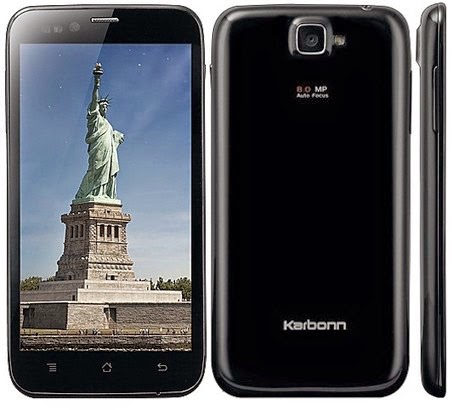
Karbonn S5 Titanium Hard Reset Google Account Remove Pattern Lock Force Close
Before you proceed flashing / hard resetting your phone / tablet make sure to back up your important files if possible. Because we care about your data.
In this tutorial I will gonna teach you how to hard reset your Karbonn S5 Titanium. This can fix the following issues that you are experiencing in your phone:
Read more »
We also suggest that your battery should be atleast 50% or better to have it fully charge, lower than the said value may cause unwanted result, such as bricking your phone / tablet rendering it unuseable. This is very important in flashing your phone / tablet. Use original USB cable as possible.
Files that you downloaded should not be corrupted, if ever the file is corrupted you might brick your phone. Or the flashing will start.
Drivers are very important specially in Spreadtrum Chipset, having an Spreadtrum SPD6610 (non android devices) driver will not work in SPD6820 (android devices).
If you are using laptop to flash your phone, make your that it has enough charge. If your laptop shutdown when your flashing your phone/tablet, youll end up bricking your phone. Sometimes you can still recover your phone just flash it again and your phone will boot up again. But that is just a case to case basis, if your phone / tablet is deadboot (totally dead, erased all program in the chip) you cant recover it, you will need to seek professional help (technician).
In this tutorial I will gonna teach you how to hard reset your Karbonn S5 Titanium. This can fix the following issues that you are experiencing in your phone:
1. Force Close Apps
2. If you forgot your Google Account
3. Hang in Logo
Ok lets do it. Just follow the procedure
1. Press and hold VOLUME UP + POWER KEY
2. now you see green screen dont release volume up and power key yet
3. after 10 seconds you see red screen, now release Volume up and power key
4. now you see recovery options.
5. select wipe data with factory reset and press power key for 2 sec.
6. now select yes -- delete all user data and press power key for 2 second.
7. now reboot device.
****Note: Sometimes you must press the power button first. Before pressing the other combination button.
1. Press and hold VOLUME UP + POWER KEY
2. now you see green screen dont release volume up and power key yet
3. after 10 seconds you see red screen, now release Volume up and power key
4. now you see recovery options.
5. select wipe data with factory reset and press power key for 2 sec.
6. now select yes -- delete all user data and press power key for 2 second.
7. now reboot device.
****Note: Sometimes you must press the power button first. Before pressing the other combination button.
Thats it. Your phone will be back in its original state.
I hope this tutorial help you with your problem.
If you have any tutorial or problems in your mobile phone I will be glad to help.
Saturday, January 31, 2015
Arc Mobile Prime 350 350D Hard Reset Hang Google Account Removal Pattern Lock
Before you proceed flashing / hard resetting your phone / tablet make sure to back up your important files if possible. Because we care about your data.
We also suggest that your battery should be atleast 50% or better to have it fully charge, lower than the said value may cause unwanted result, such as bricking your phone / tablet rendering it unuseable. This is very important in flashing your phone / tablet. Use original USB cable as possible.
Files that you downloaded should not be corrupted, if ever the file is corrupted you might brick your phone. Or the flashing will start.
Drivers are very important specially in Spreadtrum Chipset, having an Spreadtrum SPD6610 (non android devices) driver will not work in SPD6820 (android devices).
If you are using laptop to flash your phone, make your that it has enough charge. If your laptop shutdown when your flashing your phone/tablet, youll end up bricking your phone. Sometimes you can still recover your phone just flash it again and your phone will boot up again. But that is just a case to case basis, if your phone / tablet is deadboot (totally dead, erased all program in the chip) you cant recover it, you will need to seek professional help (technician).
In this tutorial I will gonna teach you how to hard reset your Arc Mobile Prime 350/350D Hard Reset. This can fix the following issues that you are experiencing in your phone:
1. Force Close Apps
2. If you forgot your Google Account
3. Hang in Logo (sometimes
4. Pattern Lock

Ok lets do it. Just follow the procedure
- Press and hold volume DOWN and Power Button (You must press the power button first for 2 seconds then immediately press the volume DOWN)
- Android System Recovery will appear
- Navigate to wipe data/factory reset (to navigate press volume DOWN, to select press Volume UP)
- Select Yes – delete all user data (to navigate press volume DOWN, to select press Volume UP)
- Reboot your phone
Thats it your phone is back in its original state.
Neo Omnipad A74 Stock ROM Alternative ROM Pattern Lock Google Account Removal Flashing
Before you proceed flashing / hard resetting your phone / tablet make sure to back up your important files if possible. Because we care about your data.
We also suggest that your battery should be atleast 50% or better to have it fully charge, lower than the said value may cause unwanted result, such as bricking your phone / tablet rendering it unuseable. This is very important in flashing your phone / tablet. Use original USB cable as possible.
Files that you downloaded should not be corrupted, if ever the file is corrupted you might brick your phone. Or the flashing will start.
Drivers are very important specially in Spreadtrum Chipset, having an Spreadtrum SPD6610 (non android devices) driver will not work in SPD6820 (android devices).
If you are using laptop to flash your phone, make your that it has enough charge. If your laptop shutdown when your flashing your phone/tablet, youll end up bricking your phone. Sometimes you can still recover your phone just flash it again and your phone will boot up again. But that is just a case to case basis, if your phone / tablet is deadboot (totally dead, erased all program in the chip) you cant recover it, you will need to seek professional help (technician).
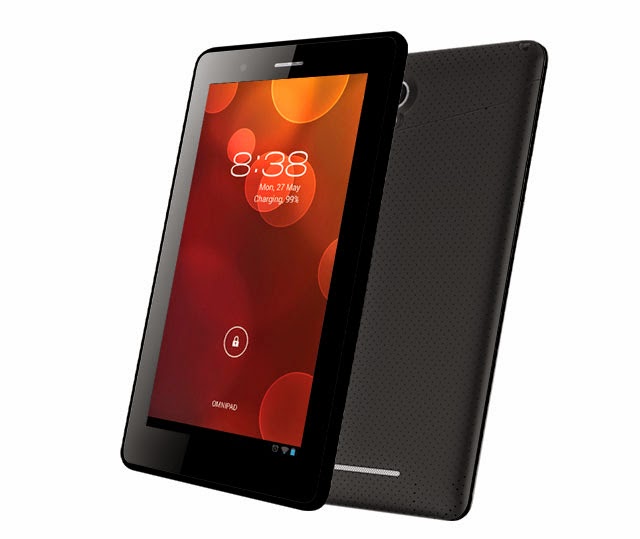
The tools and firmware are already included in the file that I will provide.
This tutorial fix the following issues in your tablet:
1. Google Account Lock up Removal
2. Pattern Lock Removal - this is the alternative way if the usb debuging mode is not activated in the settings
3. Hang in Android Logo
4. Bootloop
5. Forced Close Applications
6. Accidentally deleted systemUI
4. Bootloop
5. Forced Close Applications
6. Accidentally deleted systemUI
OK lets proceed.
1. Download the firmware and tool here --- >>> Firmware Tool
2. If you are done, extract it and install first the Pad Firmware Upgrader which is located in Pad end user upgradev1.01, It has already the driver when you install the software for flashing. Run setup.exe to install it.
3. Connect your tablet to the PC, your tablet should be power off, wait for the driver to install.
4. Open Pad Firmware Upgrade, Start>All Programs>Actions Tools
5. Click the green icon

6. Then juli.fw which is the firmware
7. Then press upgrade button. And connect your tablet in your PC.
Note: Driver is already included in the Pad Firmware Upgrade Tool, just connect your tablet in your PC and that will automatically install the driver.
Wait for it until the progress bar reach 100%. Just wait patiently :) When its done flashing sometimes the tablet does not power up automatically. Just press the reset button at the back of the tablet. Or try pressing the power button for about 10 seconds.
I hope this tutorial helps. If you have any suggestions just drop a comment ;)
Friday, January 30, 2015
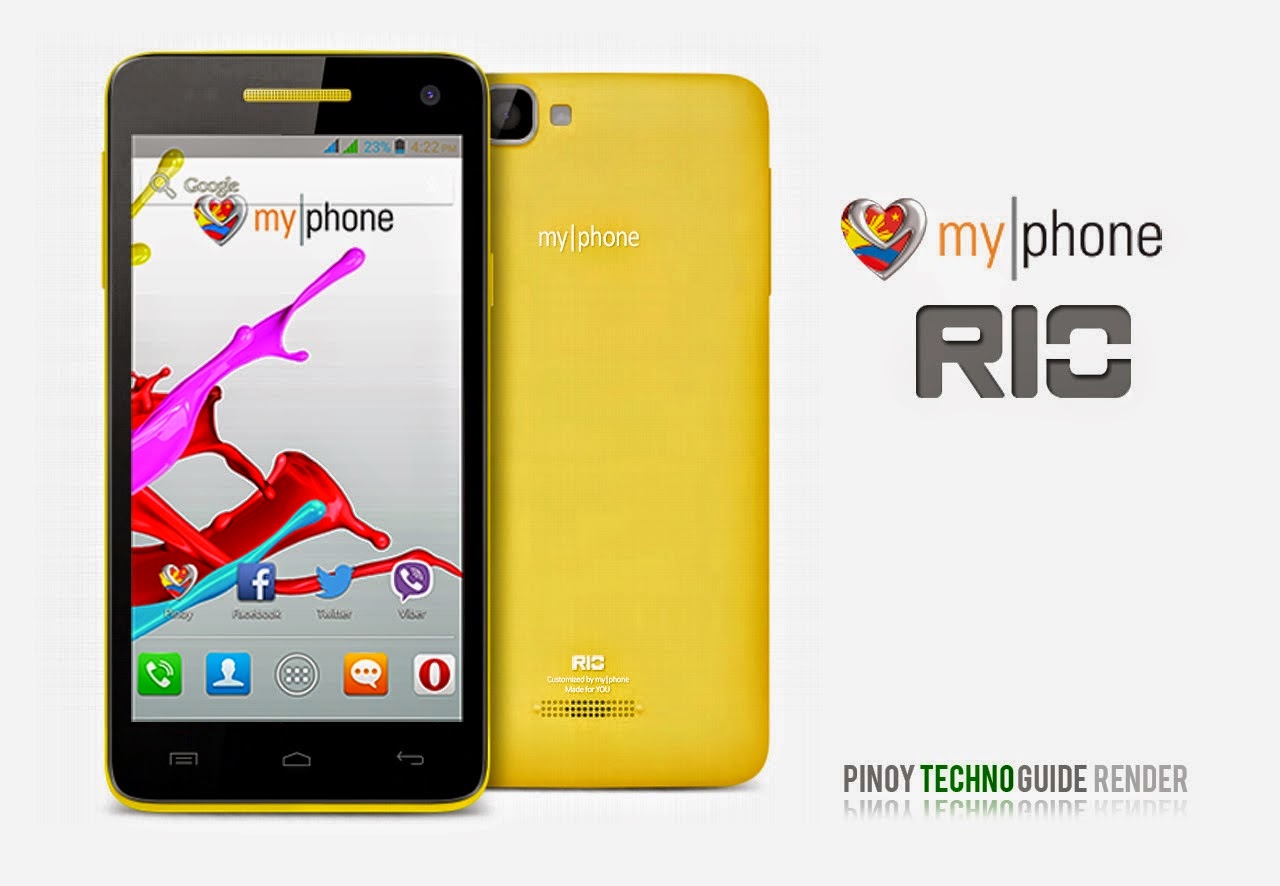
Hard Reset your MyPhone Rio and remove password pattern lock and gmail account
A colossal phone it is, the MyPhone RIO drop by in my workstation, and made a tutorial in Hard Resetting your MyPhone RIO.
Hard resetting / factory resetting your phone will solve the following issues:
1. If you forgot your pattern lock
2. If you forgot your gmail account
3. If you forgot your password
4. Apps that automatically force closing
5. Stuck in MyPhone Logo (sometimes does not work if the firmware is totally damage)
NOTE: Performing hard reset will erase your data.
To hard reset:
1. Turn off your phone
2. Press and Hold VOLUME UP + VOLUME DOWN+ Power button simultaneously. Press VOLUME UP go to RECOVERY MODE
3. Press Power Button to activate Android System Recovery
4. Select wipe / factory reset, press Volume rocker to navigate and press the MENU Key to confirm the selection.
5. Reboot your phone.
Note: If performing hard reset did not succeed, you need to wipe the cache first in the android system recovery before performing wipe / factory reset.
I hope this tutorial helps you.. If you have any question just drop a comment.
Read more »
Hard resetting / factory resetting your phone will solve the following issues:
1. If you forgot your pattern lock
2. If you forgot your gmail account
3. If you forgot your password
4. Apps that automatically force closing
5. Stuck in MyPhone Logo (sometimes does not work if the firmware is totally damage)
NOTE: Performing hard reset will erase your data.
To hard reset:
1. Turn off your phone
2. Press and Hold VOLUME UP + VOLUME DOWN+ Power button simultaneously. Press VOLUME UP go to RECOVERY MODE
3. Press Power Button to activate Android System Recovery
4. Select wipe / factory reset, press Volume rocker to navigate and press the MENU Key to confirm the selection.
5. Reboot your phone.
Note: If performing hard reset did not succeed, you need to wipe the cache first in the android system recovery before performing wipe / factory reset.
I hope this tutorial helps you.. If you have any question just drop a comment.
Wednesday, January 28, 2015
Remove password pattern lock gmail account in your Samsung Galaxy S3 Mini i8190
Check out this new tutorial for Samsung Galaxy S3 Mini (i8190). This will remove pattern lock, gmail account, and password in your Samsung Galaxy S3 Mini.

Hard resetting / factory resetting your phone will solve the following issues:
1. If you forgot your pattern lock
2. If you forgot your gmail account
3. If you forgot your password
4. Apps that automatically force closing
5. Stuck in Samsung Logo (sometimes does not work if the firmware is totally damage)
NOTE: Performing hard reset will erase your data.
To hard reset:
1. Turn off your phone
2. Press and Hold Volume UP + Home Button + Power Button simultaneously
3. Release the buttons when you see the Samsung Galaxy Logo
4. Android System Recovery should appear
5. Select wipe / factory reset, to navigate press the Volume Rocker, to select press Power Button
6. Reboot your phone.
Note: If Power Button did not work in selecting in Android System Reocvery, use HOME Button. If performing hard reset did not succeed, you need to wipe the cache first in the android system recovery before performing wipe / factory reset.
I hope this tutorial helps you.
Read more »
Hard resetting / factory resetting your phone will solve the following issues:
1. If you forgot your pattern lock
2. If you forgot your gmail account
3. If you forgot your password
4. Apps that automatically force closing
5. Stuck in Samsung Logo (sometimes does not work if the firmware is totally damage)
NOTE: Performing hard reset will erase your data.
To hard reset:
1. Turn off your phone
2. Press and Hold Volume UP + Home Button + Power Button simultaneously
3. Release the buttons when you see the Samsung Galaxy Logo
4. Android System Recovery should appear
5. Select wipe / factory reset, to navigate press the Volume Rocker, to select press Power Button
6. Reboot your phone.
Note: If Power Button did not work in selecting in Android System Reocvery, use HOME Button. If performing hard reset did not succeed, you need to wipe the cache first in the android system recovery before performing wipe / factory reset.
I hope this tutorial helps you.
Tuesday, January 27, 2015
Hard Reset your Cherry Mobile SPIN and remove password pattern lock gmail account
Cherry Mobile Spin Hard reset tutorial. I dont have much to say. :D This phone is like a HTC M8 clone :) Check out the tutorial below.

Hard resetting / factory resetting your phone will solve the following issues:
1. If you forgot your pattern lock
2. If you forgot your gmail account
3. If you forgot your password
4. Apps that automatically force closing
5. Stuck in Cherry Mobile Logo (sometimes does not work if the firmware is totally damage)
NOTE: Performing hard reset will erase your data.
To hard reset:
1. Turn off your phone.
2. Press and Hold VOLUME UP + Power button. Keep pressing and holding until the phone power up and until you a boot menu to appear.
3. Select Recovery Mode, To navigate press VOLUME UP to confirm your selection Press VOLUME DOWN.
4.Press Power Button to activate Android System Recovery.
5. Select wipe / factory reset, press Volume rocker to navigate and press VOLUME UP to confirm your selection
6. Reboot your phone.
Note:
If performing hard reset did not succeed, you need to wipe the cache first in the android system recovery before performing wipe / factory reset.
I hope this tutorial helps you.. If you have any question just drop a
comment.
Read more »
Hard resetting / factory resetting your phone will solve the following issues:
1. If you forgot your pattern lock
2. If you forgot your gmail account
3. If you forgot your password
4. Apps that automatically force closing
5. Stuck in Cherry Mobile Logo (sometimes does not work if the firmware is totally damage)
NOTE: Performing hard reset will erase your data.
To hard reset:
1. Turn off your phone.
2. Press and Hold VOLUME UP + Power button. Keep pressing and holding until the phone power up and until you a boot menu to appear.
3. Select Recovery Mode, To navigate press VOLUME UP to confirm your selection Press VOLUME DOWN.
4.Press Power Button to activate Android System Recovery.
5. Select wipe / factory reset, press Volume rocker to navigate and press VOLUME UP to confirm your selection
6. Reboot your phone.
Note:
If performing hard reset did not succeed, you need to wipe the cache first in the android system recovery before performing wipe / factory reset.
I hope this tutorial helps you.. If you have any question just drop a
comment.
Subscribe to:
Posts (Atom)