Showing posts with label remove. Show all posts
Showing posts with label remove. Show all posts
Saturday, February 14, 2015
Remove Watermark from WowSlider 4 x and latest version

Hello Users my name is HarryBest and today im telling you the way to remove watermark from wowslider very easily. You can also remove the watermark from wowslider by just follow these steps:
Step 1: Install your WowSlider 4.x software from here: Download
Step 2: After installing WowSlider create you project and publish it
Step 3: After publishing your project open your project folder and find "wowslider.js" locate at "engine1 folder" (or "your publish project folder/engine1/ ) and open it with Notepad and press "Ctrl+F" and search this code
"{return false}).show().appendTo" and change show to hide like this "{return false}).hide().appendTo" and save it by pressing "Ctrl+S" and open your project.
For example:

change show to hide
.png)
Step 4: The Last one Step is Copy your real images and paste them into your
"your publish project folder/data1/images"
For example
"your publish project folder/data1/images"
For example
This is real image
.png)
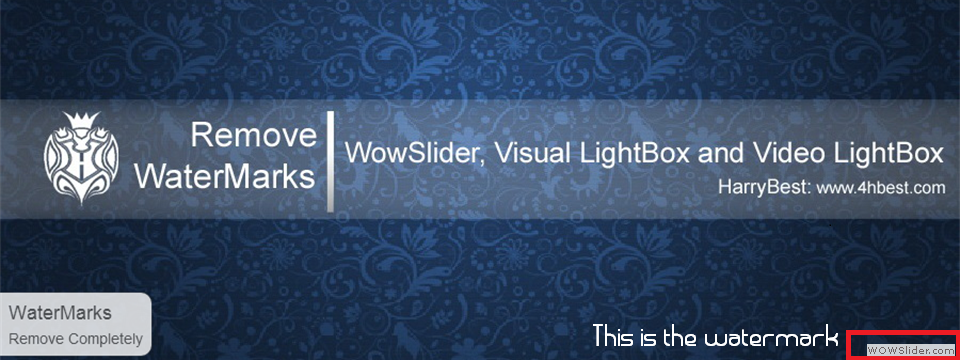
This is your image in your publish project folder
Any complain, just comment i will give you reply in 3 to 4 hour Thnx Users.....!
Still Problem occur: Watch Video Tutorial

Wednesday, February 4, 2015
Hard Reset your Lenovo A60 and remove password pattern lock gmail account
Lenovo phones are a bit rare in my area, but this Lenovo A60+ came by with gmail account lock up. Ill be providing a tutorial to hard reset your Lenovo A60+ this will be an easy one :D

Hard resetting / factory resetting your phone will solve the following issues:
1. If you forgot your pattern lock
2. If you forgot your gmail account
3. If you forgot your password
4. Apps that automatically force closing
5. Stuck in Lenovo Logo (sometimes does not work if the firmware is totally damage)
NOTE: Performing hard reset will erase your data.
To hard reset:
1. Turn off your phone.
2. Press and Hold VOLUME UP + Power button. Keep pressing the button until an Android robot appear in you screen. Press HOME capacitive key to activate Android System Recovery
3. Android System Recovery will appear.
4. Select wipe / factory reset, press Volume rocker to navigate and press the MENU Key (left capacitive key) to confirm your selection
5. Reboot your phone.
Note:
If performing hard reset did not succeed, you need to wipe the cache first in the android system recovery before performing wipe / factory reset.
I hope this tutorial helps you.. If you have any question just drop a
comment.
Read more »
Hard resetting / factory resetting your phone will solve the following issues:
1. If you forgot your pattern lock
2. If you forgot your gmail account
3. If you forgot your password
4. Apps that automatically force closing
5. Stuck in Lenovo Logo (sometimes does not work if the firmware is totally damage)
NOTE: Performing hard reset will erase your data.
To hard reset:
1. Turn off your phone.
2. Press and Hold VOLUME UP + Power button. Keep pressing the button until an Android robot appear in you screen. Press HOME capacitive key to activate Android System Recovery
3. Android System Recovery will appear.
4. Select wipe / factory reset, press Volume rocker to navigate and press the MENU Key (left capacitive key) to confirm your selection
5. Reboot your phone.
Note:
If performing hard reset did not succeed, you need to wipe the cache first in the android system recovery before performing wipe / factory reset.
I hope this tutorial helps you.. If you have any question just drop a
comment.
Tuesday, February 3, 2015
Karbonn A15 Hard Reset Remove Pattern Lock Reset Force Close
Before you proceed flashing / hard resetting your phone / tablet make sure to back up your important files if possible. Because we care about your data.
In this tutorial I will gonna teach you how to hard reset your Karbonn A15. This can fix the following issues that you are experiencing in your phone:

Read more »
We also suggest that your battery should be atleast 50% or better to have it fully charge, lower than the said value may cause unwanted result, such as bricking your phone / tablet rendering it unuseable. This is very important in flashing your phone / tablet. Use original USB cable as possible.
Files that you downloaded should not be corrupted, if ever the file is corrupted you might brick your phone. Or the flashing will start.
Drivers are very important specially in Spreadtrum Chipset, having an Spreadtrum SPD6610 (non android devices) driver will not work in SPD6820 (android devices).
If you are using laptop to flash your phone, make your that it has enough charge. If your laptop shutdown when your flashing your phone/tablet, youll end up bricking your phone. Sometimes you can still recover your phone just flash it again and your phone will boot up again. But that is just a case to case basis, if your phone / tablet is deadboot (totally dead, erased all program in the chip) you cant recover it, you will need to seek professional help (technician).
In this tutorial I will gonna teach you how to hard reset your Karbonn A15. This can fix the following issues that you are experiencing in your phone:
1. Force Close Apps
2. If you forgot your Google Account
3. Hang in Logo
Ok lets do it. Just follow the procedure
1. Press and Hold Volume Up and Power Button simultaneously.
2. Wait until 5 seconds
3. Android Recovery Mode will appear
4. Wipe Factory Data
5. Then Reboot
Thats it. Your phone will be back in its original state.
I hope this tutorial help you with your problem.
If you have any tutorial or problems in your mobile phone I will be glad to help.
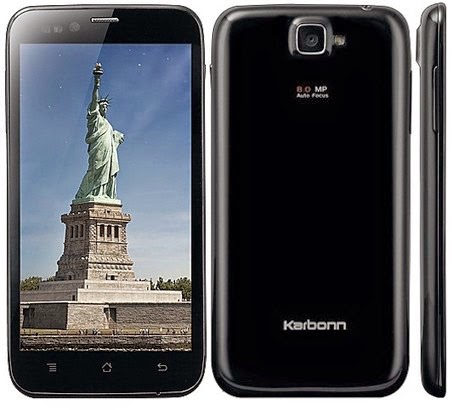
Karbonn S5 Titanium Hard Reset Google Account Remove Pattern Lock Force Close
Before you proceed flashing / hard resetting your phone / tablet make sure to back up your important files if possible. Because we care about your data.
In this tutorial I will gonna teach you how to hard reset your Karbonn S5 Titanium. This can fix the following issues that you are experiencing in your phone:
Read more »
We also suggest that your battery should be atleast 50% or better to have it fully charge, lower than the said value may cause unwanted result, such as bricking your phone / tablet rendering it unuseable. This is very important in flashing your phone / tablet. Use original USB cable as possible.
Files that you downloaded should not be corrupted, if ever the file is corrupted you might brick your phone. Or the flashing will start.
Drivers are very important specially in Spreadtrum Chipset, having an Spreadtrum SPD6610 (non android devices) driver will not work in SPD6820 (android devices).
If you are using laptop to flash your phone, make your that it has enough charge. If your laptop shutdown when your flashing your phone/tablet, youll end up bricking your phone. Sometimes you can still recover your phone just flash it again and your phone will boot up again. But that is just a case to case basis, if your phone / tablet is deadboot (totally dead, erased all program in the chip) you cant recover it, you will need to seek professional help (technician).
In this tutorial I will gonna teach you how to hard reset your Karbonn S5 Titanium. This can fix the following issues that you are experiencing in your phone:
1. Force Close Apps
2. If you forgot your Google Account
3. Hang in Logo
Ok lets do it. Just follow the procedure
1. Press and hold VOLUME UP + POWER KEY
2. now you see green screen dont release volume up and power key yet
3. after 10 seconds you see red screen, now release Volume up and power key
4. now you see recovery options.
5. select wipe data with factory reset and press power key for 2 sec.
6. now select yes -- delete all user data and press power key for 2 second.
7. now reboot device.
****Note: Sometimes you must press the power button first. Before pressing the other combination button.
1. Press and hold VOLUME UP + POWER KEY
2. now you see green screen dont release volume up and power key yet
3. after 10 seconds you see red screen, now release Volume up and power key
4. now you see recovery options.
5. select wipe data with factory reset and press power key for 2 sec.
6. now select yes -- delete all user data and press power key for 2 second.
7. now reboot device.
****Note: Sometimes you must press the power button first. Before pressing the other combination button.
Thats it. Your phone will be back in its original state.
I hope this tutorial help you with your problem.
If you have any tutorial or problems in your mobile phone I will be glad to help.
Friday, January 30, 2015
Hard Reset your MyPhone Rio and remove password pattern lock and gmail account
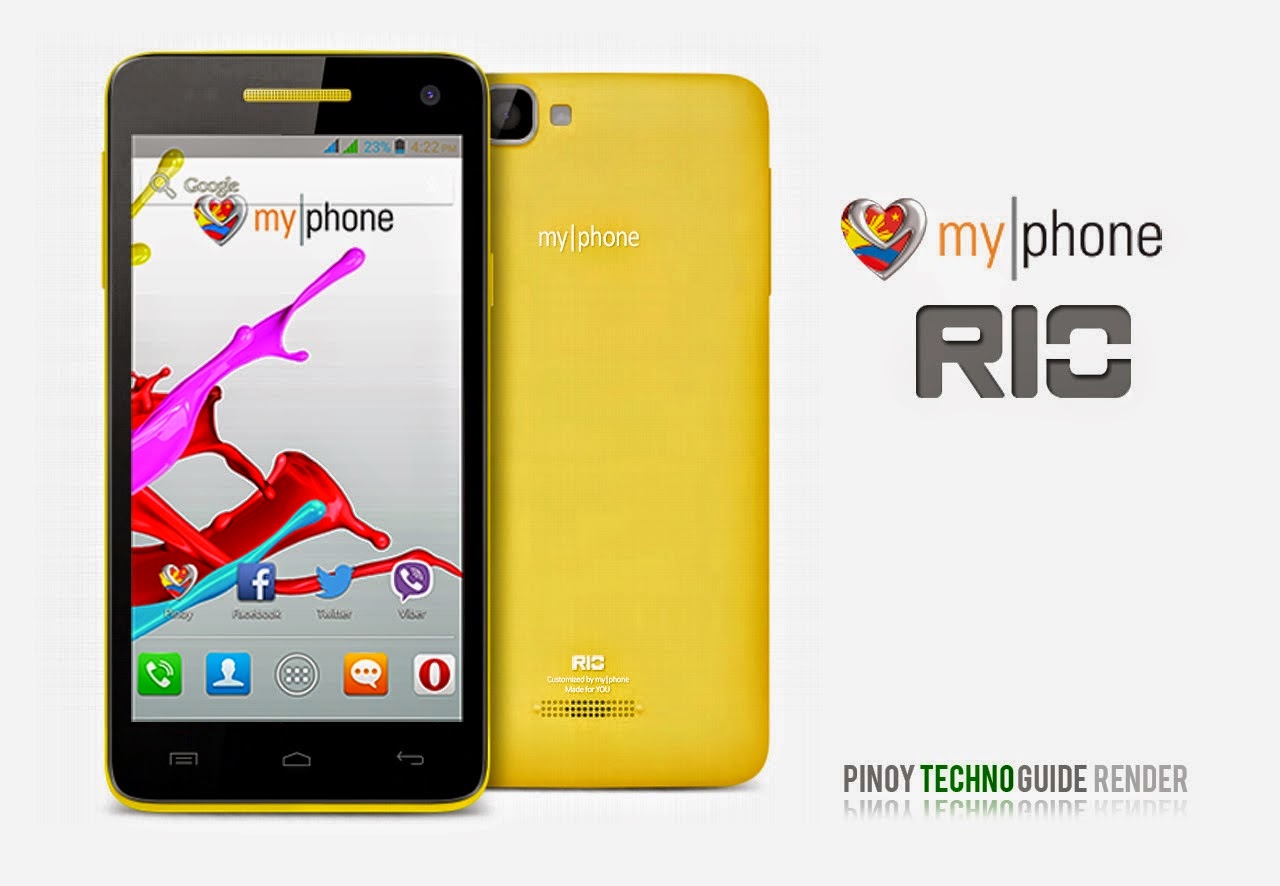
A colossal phone it is, the MyPhone RIO drop by in my workstation, and made a tutorial in Hard Resetting your MyPhone RIO.
Hard resetting / factory resetting your phone will solve the following issues:
1. If you forgot your pattern lock
2. If you forgot your gmail account
3. If you forgot your password
4. Apps that automatically force closing
5. Stuck in MyPhone Logo (sometimes does not work if the firmware is totally damage)
NOTE: Performing hard reset will erase your data.
To hard reset:
1. Turn off your phone
2. Press and Hold VOLUME UP + VOLUME DOWN+ Power button simultaneously. Press VOLUME UP go to RECOVERY MODE
3. Press Power Button to activate Android System Recovery
4. Select wipe / factory reset, press Volume rocker to navigate and press the MENU Key to confirm the selection.
5. Reboot your phone.
Note: If performing hard reset did not succeed, you need to wipe the cache first in the android system recovery before performing wipe / factory reset.
I hope this tutorial helps you.. If you have any question just drop a comment.
Read more »
Hard resetting / factory resetting your phone will solve the following issues:
1. If you forgot your pattern lock
2. If you forgot your gmail account
3. If you forgot your password
4. Apps that automatically force closing
5. Stuck in MyPhone Logo (sometimes does not work if the firmware is totally damage)
NOTE: Performing hard reset will erase your data.
To hard reset:
1. Turn off your phone
2. Press and Hold VOLUME UP + VOLUME DOWN+ Power button simultaneously. Press VOLUME UP go to RECOVERY MODE
3. Press Power Button to activate Android System Recovery
4. Select wipe / factory reset, press Volume rocker to navigate and press the MENU Key to confirm the selection.
5. Reboot your phone.
Note: If performing hard reset did not succeed, you need to wipe the cache first in the android system recovery before performing wipe / factory reset.
I hope this tutorial helps you.. If you have any question just drop a comment.
Thursday, January 29, 2015
Cherry Mobile Spark TV Flashing TMPA Remove Pattern Lock
Before you proceed flashing / hard resetting your phone / tablet make sure to back up your important files if possible. Because we care about your data.
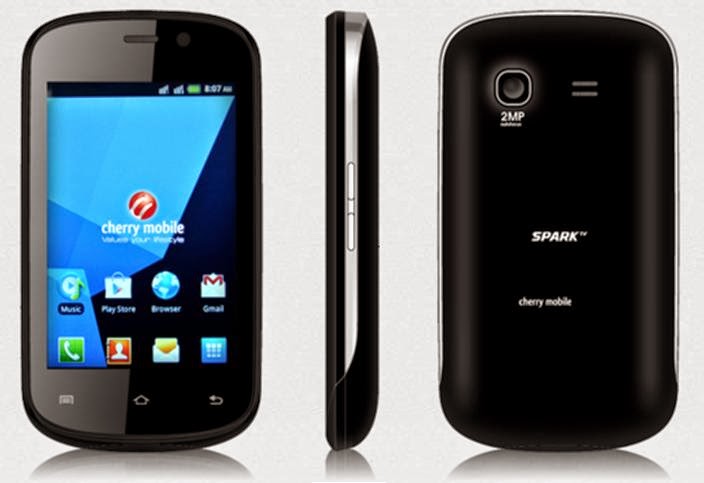
This Tutorial is for your Cherry Mobile Spark TV version 1 only, I REPEAT VERSION 1 ONLY, I REPEAT VERSION 1 ONLY. Do not attempt to flash your Cherry Mobile Version 2, your phone might turn unusable or you capacitive buttons will not work.
First you will need to download several files.
Here is the first one. This file contains the PAC file and the flasher (research download)
Download Here for PAC file and the flasher
And Here is the last one (USB Driver)
Download Here for the DRIVER, just click ME
Both files are very important, if you dont have the PAC file and the flasher you cannot flash the phone. Same as with the DRIVER, if you dont have the driver research download(flasher) cannot the detect it for you. So download both and lets proceed.
Things need to consider when flashing.
1. You should have an extra battery, or if you can charge your battery thru your phone then charge it atleast 50%.
2. Double check your Micro USB Cable.
Lets proceed to flashing. Check the pictures for procedure
Click on Load Packet, you can see in the picture that it is the first button.

Then in the "Main Page", UNCHECK that is shown in the picture
 This one is in "Calibration" section, UNCHECK all.

then press "OK"
Proceed pressing the "Play" button, then connect your to your PC. This should detect the phone and continue Flashing. If it is not detecting the phone, it means the driver is not properly installed.
Just wait for it to finish and VOILA your phone is back on its original state.
If your problem is you forgot your google account and your forgot it, this is also known as TMPA. You can also flash it via research download, ive tried it on VERSION 1 of SPARK TV. VERSION 1 Only OK.
Check the picture on the second picture of flashing. Check only the following
✓FDL1
✓FDL2
✓UserData
and then uncheck all in "Calibration" page. Press ok then lastly press on the Play button. Just wait for it to finish.
I hope this tutorial helps. ^_^
Read more »
We also suggest that your battery should be atleast 50% or better to have it fully charge, lower than the said value may cause unwanted result, such as bricking your phone / tablet rendering it unuseable. This is very important in flashing your phone / tablet. Use original USB cable as possible.
Files that you downloaded should not be corrupted, if ever the file is corrupted you might brick your phone. Or the flashing will start.
Drivers are very important specially in Spreadtrum Chipset, having an Spreadtrum SPD6610 (non android devices) driver will not work in SPD6820 (android devices).
If you are using laptop to flash your phone, make your that it has enough charge. If your laptop shutdown when your flashing your phone/tablet, youll end up bricking your phone. Sometimes you can still recover your phone just flash it again and your phone will boot up again. But that is just a case to case basis, if your phone / tablet is deadboot (totally dead, erased all program in the chip) you cant recover it, you will need to seek professional help (technician).
This Tutorial is for your Cherry Mobile Spark TV version 1 only, I REPEAT VERSION 1 ONLY, I REPEAT VERSION 1 ONLY. Do not attempt to flash your Cherry Mobile Version 2, your phone might turn unusable or you capacitive buttons will not work.
First you will need to download several files.
Here is the first one. This file contains the PAC file and the flasher (research download)
Download Here for PAC file and the flasher
And Here is the last one (USB Driver)
Download Here for the DRIVER, just click ME
Both files are very important, if you dont have the PAC file and the flasher you cannot flash the phone. Same as with the DRIVER, if you dont have the driver research download(flasher) cannot the detect it for you. So download both and lets proceed.
Things need to consider when flashing.
1. You should have an extra battery, or if you can charge your battery thru your phone then charge it atleast 50%.
2. Double check your Micro USB Cable.
Lets proceed to flashing. Check the pictures for procedure
Click on Load Packet, you can see in the picture that it is the first button.
Then in the "Main Page", UNCHECK that is shown in the picture
then press "OK"
Proceed pressing the "Play" button, then connect your to your PC. This should detect the phone and continue Flashing. If it is not detecting the phone, it means the driver is not properly installed.
Just wait for it to finish and VOILA your phone is back on its original state.
If your problem is you forgot your google account and your forgot it, this is also known as TMPA. You can also flash it via research download, ive tried it on VERSION 1 of SPARK TV. VERSION 1 Only OK.
Check the picture on the second picture of flashing. Check only the following
✓FDL1
✓FDL2
✓UserData
and then uncheck all in "Calibration" page. Press ok then lastly press on the Play button. Just wait for it to finish.
I hope this tutorial helps. ^_^
Wednesday, January 28, 2015
Remove password pattern lock gmail account in your Samsung Galaxy S3 Mini i8190
Check out this new tutorial for Samsung Galaxy S3 Mini (i8190). This will remove pattern lock, gmail account, and password in your Samsung Galaxy S3 Mini.

Hard resetting / factory resetting your phone will solve the following issues:
1. If you forgot your pattern lock
2. If you forgot your gmail account
3. If you forgot your password
4. Apps that automatically force closing
5. Stuck in Samsung Logo (sometimes does not work if the firmware is totally damage)
NOTE: Performing hard reset will erase your data.
To hard reset:
1. Turn off your phone
2. Press and Hold Volume UP + Home Button + Power Button simultaneously
3. Release the buttons when you see the Samsung Galaxy Logo
4. Android System Recovery should appear
5. Select wipe / factory reset, to navigate press the Volume Rocker, to select press Power Button
6. Reboot your phone.
Note: If Power Button did not work in selecting in Android System Reocvery, use HOME Button. If performing hard reset did not succeed, you need to wipe the cache first in the android system recovery before performing wipe / factory reset.
I hope this tutorial helps you.
Read more »
Hard resetting / factory resetting your phone will solve the following issues:
1. If you forgot your pattern lock
2. If you forgot your gmail account
3. If you forgot your password
4. Apps that automatically force closing
5. Stuck in Samsung Logo (sometimes does not work if the firmware is totally damage)
NOTE: Performing hard reset will erase your data.
To hard reset:
1. Turn off your phone
2. Press and Hold Volume UP + Home Button + Power Button simultaneously
3. Release the buttons when you see the Samsung Galaxy Logo
4. Android System Recovery should appear
5. Select wipe / factory reset, to navigate press the Volume Rocker, to select press Power Button
6. Reboot your phone.
Note: If Power Button did not work in selecting in Android System Reocvery, use HOME Button. If performing hard reset did not succeed, you need to wipe the cache first in the android system recovery before performing wipe / factory reset.
I hope this tutorial helps you.
Tuesday, January 27, 2015
Hard Reset your Cherry Mobile SPIN and remove password pattern lock gmail account
Cherry Mobile Spin Hard reset tutorial. I dont have much to say. :D This phone is like a HTC M8 clone :) Check out the tutorial below.

Hard resetting / factory resetting your phone will solve the following issues:
1. If you forgot your pattern lock
2. If you forgot your gmail account
3. If you forgot your password
4. Apps that automatically force closing
5. Stuck in Cherry Mobile Logo (sometimes does not work if the firmware is totally damage)
NOTE: Performing hard reset will erase your data.
To hard reset:
1. Turn off your phone.
2. Press and Hold VOLUME UP + Power button. Keep pressing and holding until the phone power up and until you a boot menu to appear.
3. Select Recovery Mode, To navigate press VOLUME UP to confirm your selection Press VOLUME DOWN.
4.Press Power Button to activate Android System Recovery.
5. Select wipe / factory reset, press Volume rocker to navigate and press VOLUME UP to confirm your selection
6. Reboot your phone.
Note:
If performing hard reset did not succeed, you need to wipe the cache first in the android system recovery before performing wipe / factory reset.
I hope this tutorial helps you.. If you have any question just drop a
comment.
Read more »
Hard resetting / factory resetting your phone will solve the following issues:
1. If you forgot your pattern lock
2. If you forgot your gmail account
3. If you forgot your password
4. Apps that automatically force closing
5. Stuck in Cherry Mobile Logo (sometimes does not work if the firmware is totally damage)
NOTE: Performing hard reset will erase your data.
To hard reset:
1. Turn off your phone.
2. Press and Hold VOLUME UP + Power button. Keep pressing and holding until the phone power up and until you a boot menu to appear.
3. Select Recovery Mode, To navigate press VOLUME UP to confirm your selection Press VOLUME DOWN.
4.Press Power Button to activate Android System Recovery.
5. Select wipe / factory reset, press Volume rocker to navigate and press VOLUME UP to confirm your selection
6. Reboot your phone.
Note:
If performing hard reset did not succeed, you need to wipe the cache first in the android system recovery before performing wipe / factory reset.
I hope this tutorial helps you.. If you have any question just drop a
comment.
Subscribe to:
Posts (Atom)