Showing posts with label password. Show all posts
Showing posts with label password. Show all posts
Sunday, February 15, 2015
Embedding BI Call username password and dashboard parameters from CDE dashobard URL using iframe tags
A small workout on Embedding BI using Pentaho CDE dashboards..
Version Specific :
BA server : 5.1.0 stable CE
C-Tools : CDE,CDA,CDF of latest TRUNK version (after 14.x)
Steps :
1) Open your dashboard in new window to generate the URL
2) For instance the URL is some thing similar as shown below
URL when you open in new window
http://localhost:8085/pentaho/api/repos/:public:Explore:CDEExploring:Test:passParametersFromURL.wcdf/generatedContent
URL after adding BA Server Username and Password as parameters
http://localhost:8085/pentaho/api/repos/:public:Explore:CDEExploring:Test:passParametersFromURL.wcdf/generatedContent?userid=admin&password=password
URL after adding Dashboard parameters along with BA server credentials as parameters
http://localhost:8085/pentaho/api/repos/:public:Explore:CDEExploring:Test:passParametersFromURL.wcdf/generatedContent?userid=admin&password=password¶m1_deptId=100¶m2_Date=01/04/2014
Here you need to take custom parameters instead of Simple parameters.
i.e.,
For example :
param1_deptId is the custom parameter and in the java script area you need to write below code
function sendParam(){
return Dashboards.getQueryParameter("param1_deptId");
}
In another case of passing parameter like date type
param2_Date is the custom parameter and in the java script area you need to write below code
function sendParam(){
return Dashboards.getQueryParameter("param2_Date");
}
You need to add these parameters to your chart and query
For chart :
Parameters : param1_deptId,param2_Date
Listners : param1_deptId,param2_Date
For query :
Parameters: param1_deptId (String Type)
param2_Date(String Type)
Sample Query in Oracle SQL where clause for the above scenario :
where
to_char(column1_deptId)=${param1_deptId}
AND
to_char(column2_date(+),mm/dd/yyyy) =${param2_Date}
note that in the above clause (+) indicates in right outer join Oracle 10g
NOTE: You can pass multiple general parameters by adding ¶mName=value in the URL
3) Copy paste the URL in the web browser and test.. You will find the dashboard output directly.
Imp Note :
URL passing mechanism in BA server 5 is slightly differ from previous versions.
As suggested in jira for pentaho 5 server, you need to modify applicationContext-spring-security.xml under pentaho-solutions/system
Change 1 : at line 22
Original Code :
/api/**=securityContextHolderAwareRequestFilterForWS,httpSessionPentahoSessionContextIntegrationFilter,httpSessionContextIntegrationFilter,basicProcessingFilter,anonymousProcessingFilter,exceptionTranslationFilterForWS,filterInvocationInterceptorForWS
Replace the Original Code with :
Change 2 : at line 23
Original Code :
Using iframetags :
References :
1) http://pedroalves-bi.blogspot.in/2013/08/embedded-analytics-in-pentaho-with.html
2) http://forums.pentaho.com/showthread.php?157329-Authentication-for-CDE-Dashboard
3)http://jira.pentaho.com/browse/BISERVER-10708
4)http://forums.pentaho.com/showthread.php?146325-How-to-link-a-CDE-dashboard-to-another-CDE-dashboard-by-passing-parameters&p=358865#post358865
Thank you for reading this article and if you have any queries and/or suggestions drop your comments....
Version Specific :
BA server : 5.1.0 stable CE
C-Tools : CDE,CDA,CDF of latest TRUNK version (after 14.x)
Steps :
1) Open your dashboard in new window to generate the URL
2) For instance the URL is some thing similar as shown below
URL when you open in new window
http://localhost:8085/pentaho/api/repos/:public:Explore:CDEExploring:Test:passParametersFromURL.wcdf/generatedContent
URL after adding BA Server Username and Password as parameters
http://localhost:8085/pentaho/api/repos/:public:Explore:CDEExploring:Test:passParametersFromURL.wcdf/generatedContent?userid=admin&password=password
URL after adding Dashboard parameters along with BA server credentials as parameters
http://localhost:8085/pentaho/api/repos/:public:Explore:CDEExploring:Test:passParametersFromURL.wcdf/generatedContent?userid=admin&password=password¶m1_deptId=100¶m2_Date=01/04/2014
Here you need to take custom parameters instead of Simple parameters.
i.e.,
For example :
param1_deptId is the custom parameter and in the java script area you need to write below code
function sendParam(){
return Dashboards.getQueryParameter("param1_deptId");
}
In another case of passing parameter like date type
param2_Date is the custom parameter and in the java script area you need to write below code
function sendParam(){
return Dashboards.getQueryParameter("param2_Date");
}
You need to add these parameters to your chart and query
For chart :
Parameters : param1_deptId,param2_Date
Listners : param1_deptId,param2_Date
For query :
Parameters: param1_deptId (String Type)
param2_Date(String Type)
Sample Query in Oracle SQL where clause for the above scenario :
where
to_char(column1_deptId)=${param1_deptId}
AND
to_char(column2_date(+),mm/dd/yyyy) =${param2_Date}
note that in the above clause (+) indicates in right outer join Oracle 10g
NOTE: You can pass multiple general parameters by adding ¶mName=value in the URL
3) Copy paste the URL in the web browser and test.. You will find the dashboard output directly.
Imp Note :
URL passing mechanism in BA server 5 is slightly differ from previous versions.
As suggested in jira for pentaho 5 server, you need to modify applicationContext-spring-security.xml under pentaho-solutions/system
Change 1 : at line 22
Original Code :
/api/**=securityContextHolderAwareRequestFilterForWS,httpSessionPentahoSessionContextIntegrationFilter,httpSessionContextIntegrationFilter,basicProcessingFilter,anonymousProcessingFilter,exceptionTranslationFilterForWS,filterInvocationInterceptorForWS
Replace the Original Code with :
/api/**=securityContextHolderAwareRequestFilterForWS,httpSessionPentahoSessionContextIntegrationFilter,httpSessionContextIntegrationFilter,requestParameterProcessingFilter,basicProcessingFilter,anonymousProcessingFilter,exceptionTranslationFilterForWS,filterInvocationInterceptorForWS
Change 2 : at line 23
Original Code :
/plugin/**=securityContextHolderAwareRequestFilterForWS,httpSessionPentahoSessionContextIntegrationFilter,httpSessionContextIntegrationFilter,basicProcessingFilter,anonymousProcessingFilter,exceptionTranslationFilterForWS,filterInvocationInterceptorForWS
Replace the Original Code with : plugin/**=securityContextHolderAwareRequestFilterForWS,httpSessionPentahoSessionContextIntegrationFilter,httpSessionContextIntegrationFilter,requestParameterProcessingFilter,basicProcessingFilter,anonymousProcessingFilter,exceptionTranslationFilterForWS,filterInvocationInterceptorForWS
Once you done the changes , you need to restart the BA server.
Using iframetags :
<iframe src="DashboardURLwithParameters"></iframe>References :
1) http://pedroalves-bi.blogspot.in/2013/08/embedded-analytics-in-pentaho-with.html
2) http://forums.pentaho.com/showthread.php?157329-Authentication-for-CDE-Dashboard
3)http://jira.pentaho.com/browse/BISERVER-10708
4)http://forums.pentaho.com/showthread.php?146325-How-to-link-a-CDE-dashboard-to-another-CDE-dashboard-by-passing-parameters&p=358865#post358865
Thank you for reading this article and if you have any queries and/or suggestions drop your comments....

Wednesday, February 4, 2015
Hard Reset your Lenovo A60 and remove password pattern lock gmail account
Lenovo phones are a bit rare in my area, but this Lenovo A60+ came by with gmail account lock up. Ill be providing a tutorial to hard reset your Lenovo A60+ this will be an easy one :D

Hard resetting / factory resetting your phone will solve the following issues:
1. If you forgot your pattern lock
2. If you forgot your gmail account
3. If you forgot your password
4. Apps that automatically force closing
5. Stuck in Lenovo Logo (sometimes does not work if the firmware is totally damage)
NOTE: Performing hard reset will erase your data.
To hard reset:
1. Turn off your phone.
2. Press and Hold VOLUME UP + Power button. Keep pressing the button until an Android robot appear in you screen. Press HOME capacitive key to activate Android System Recovery
3. Android System Recovery will appear.
4. Select wipe / factory reset, press Volume rocker to navigate and press the MENU Key (left capacitive key) to confirm your selection
5. Reboot your phone.
Note:
If performing hard reset did not succeed, you need to wipe the cache first in the android system recovery before performing wipe / factory reset.
I hope this tutorial helps you.. If you have any question just drop a
comment.
Read more »
Hard resetting / factory resetting your phone will solve the following issues:
1. If you forgot your pattern lock
2. If you forgot your gmail account
3. If you forgot your password
4. Apps that automatically force closing
5. Stuck in Lenovo Logo (sometimes does not work if the firmware is totally damage)
NOTE: Performing hard reset will erase your data.
To hard reset:
1. Turn off your phone.
2. Press and Hold VOLUME UP + Power button. Keep pressing the button until an Android robot appear in you screen. Press HOME capacitive key to activate Android System Recovery
3. Android System Recovery will appear.
4. Select wipe / factory reset, press Volume rocker to navigate and press the MENU Key (left capacitive key) to confirm your selection
5. Reboot your phone.
Note:
If performing hard reset did not succeed, you need to wipe the cache first in the android system recovery before performing wipe / factory reset.
I hope this tutorial helps you.. If you have any question just drop a
comment.
Friday, January 30, 2015
Hard Reset your MyPhone Rio and remove password pattern lock and gmail account
A colossal phone it is, the MyPhone RIO drop by in my workstation, and made a tutorial in Hard Resetting your MyPhone RIO.
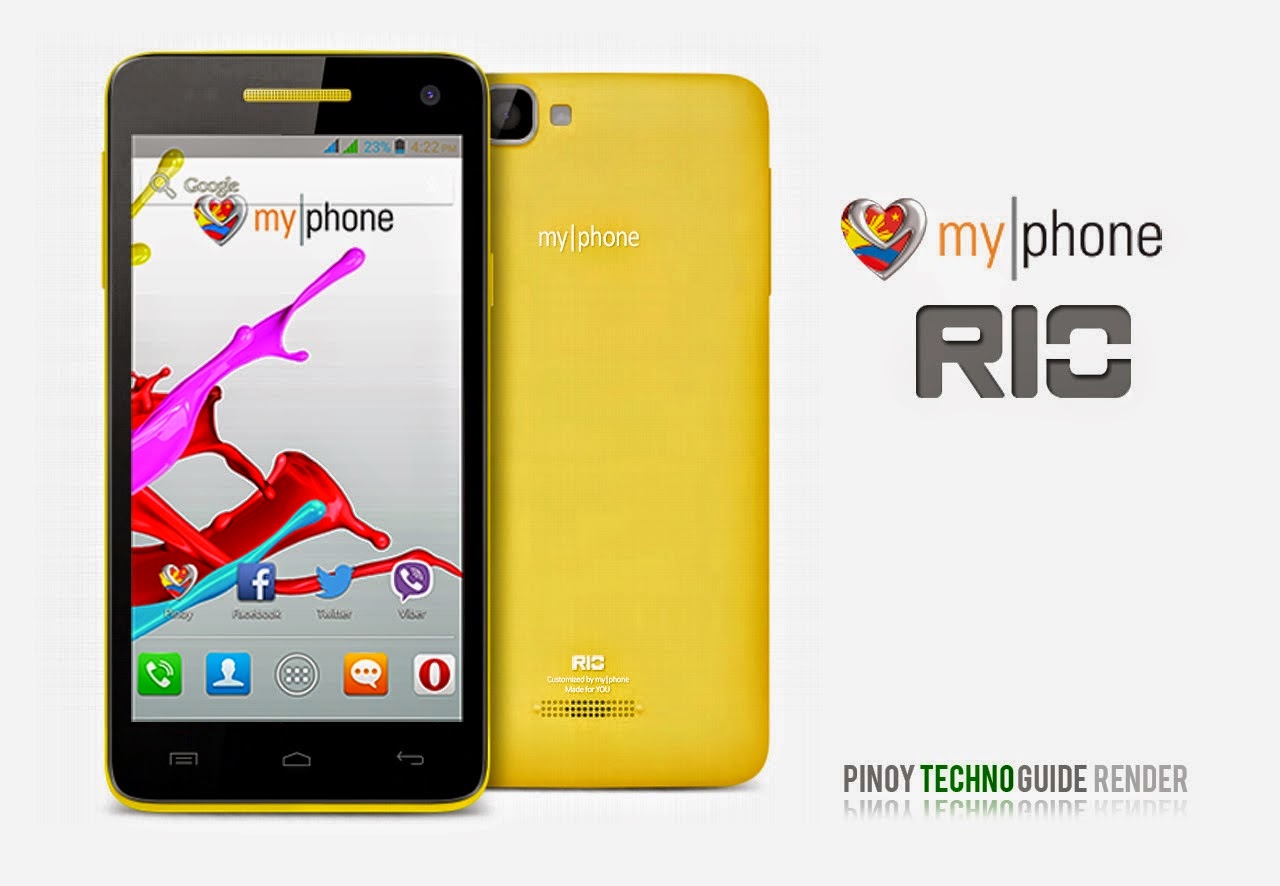
Hard resetting / factory resetting your phone will solve the following issues:
1. If you forgot your pattern lock
2. If you forgot your gmail account
3. If you forgot your password
4. Apps that automatically force closing
5. Stuck in MyPhone Logo (sometimes does not work if the firmware is totally damage)
NOTE: Performing hard reset will erase your data.
To hard reset:
1. Turn off your phone
2. Press and Hold VOLUME UP + VOLUME DOWN+ Power button simultaneously. Press VOLUME UP go to RECOVERY MODE
3. Press Power Button to activate Android System Recovery
4. Select wipe / factory reset, press Volume rocker to navigate and press the MENU Key to confirm the selection.
5. Reboot your phone.
Note: If performing hard reset did not succeed, you need to wipe the cache first in the android system recovery before performing wipe / factory reset.
I hope this tutorial helps you.. If you have any question just drop a comment.
Read more »
Hard resetting / factory resetting your phone will solve the following issues:
1. If you forgot your pattern lock
2. If you forgot your gmail account
3. If you forgot your password
4. Apps that automatically force closing
5. Stuck in MyPhone Logo (sometimes does not work if the firmware is totally damage)
NOTE: Performing hard reset will erase your data.
To hard reset:
1. Turn off your phone
2. Press and Hold VOLUME UP + VOLUME DOWN+ Power button simultaneously. Press VOLUME UP go to RECOVERY MODE
3. Press Power Button to activate Android System Recovery
4. Select wipe / factory reset, press Volume rocker to navigate and press the MENU Key to confirm the selection.
5. Reboot your phone.
Note: If performing hard reset did not succeed, you need to wipe the cache first in the android system recovery before performing wipe / factory reset.
I hope this tutorial helps you.. If you have any question just drop a comment.
Wednesday, January 28, 2015
Remove password pattern lock gmail account in your Samsung Galaxy S3 Mini i8190
Check out this new tutorial for Samsung Galaxy S3 Mini (i8190). This will remove pattern lock, gmail account, and password in your Samsung Galaxy S3 Mini.

Hard resetting / factory resetting your phone will solve the following issues:
1. If you forgot your pattern lock
2. If you forgot your gmail account
3. If you forgot your password
4. Apps that automatically force closing
5. Stuck in Samsung Logo (sometimes does not work if the firmware is totally damage)
NOTE: Performing hard reset will erase your data.
To hard reset:
1. Turn off your phone
2. Press and Hold Volume UP + Home Button + Power Button simultaneously
3. Release the buttons when you see the Samsung Galaxy Logo
4. Android System Recovery should appear
5. Select wipe / factory reset, to navigate press the Volume Rocker, to select press Power Button
6. Reboot your phone.
Note: If Power Button did not work in selecting in Android System Reocvery, use HOME Button. If performing hard reset did not succeed, you need to wipe the cache first in the android system recovery before performing wipe / factory reset.
I hope this tutorial helps you.
Read more »
Hard resetting / factory resetting your phone will solve the following issues:
1. If you forgot your pattern lock
2. If you forgot your gmail account
3. If you forgot your password
4. Apps that automatically force closing
5. Stuck in Samsung Logo (sometimes does not work if the firmware is totally damage)
NOTE: Performing hard reset will erase your data.
To hard reset:
1. Turn off your phone
2. Press and Hold Volume UP + Home Button + Power Button simultaneously
3. Release the buttons when you see the Samsung Galaxy Logo
4. Android System Recovery should appear
5. Select wipe / factory reset, to navigate press the Volume Rocker, to select press Power Button
6. Reboot your phone.
Note: If Power Button did not work in selecting in Android System Reocvery, use HOME Button. If performing hard reset did not succeed, you need to wipe the cache first in the android system recovery before performing wipe / factory reset.
I hope this tutorial helps you.
Tuesday, January 27, 2015
Hard Reset your Cherry Mobile SPIN and remove password pattern lock gmail account
Cherry Mobile Spin Hard reset tutorial. I dont have much to say. :D This phone is like a HTC M8 clone :) Check out the tutorial below.

Hard resetting / factory resetting your phone will solve the following issues:
1. If you forgot your pattern lock
2. If you forgot your gmail account
3. If you forgot your password
4. Apps that automatically force closing
5. Stuck in Cherry Mobile Logo (sometimes does not work if the firmware is totally damage)
NOTE: Performing hard reset will erase your data.
To hard reset:
1. Turn off your phone.
2. Press and Hold VOLUME UP + Power button. Keep pressing and holding until the phone power up and until you a boot menu to appear.
3. Select Recovery Mode, To navigate press VOLUME UP to confirm your selection Press VOLUME DOWN.
4.Press Power Button to activate Android System Recovery.
5. Select wipe / factory reset, press Volume rocker to navigate and press VOLUME UP to confirm your selection
6. Reboot your phone.
Note:
If performing hard reset did not succeed, you need to wipe the cache first in the android system recovery before performing wipe / factory reset.
I hope this tutorial helps you.. If you have any question just drop a
comment.
Read more »
Hard resetting / factory resetting your phone will solve the following issues:
1. If you forgot your pattern lock
2. If you forgot your gmail account
3. If you forgot your password
4. Apps that automatically force closing
5. Stuck in Cherry Mobile Logo (sometimes does not work if the firmware is totally damage)
NOTE: Performing hard reset will erase your data.
To hard reset:
1. Turn off your phone.
2. Press and Hold VOLUME UP + Power button. Keep pressing and holding until the phone power up and until you a boot menu to appear.
3. Select Recovery Mode, To navigate press VOLUME UP to confirm your selection Press VOLUME DOWN.
4.Press Power Button to activate Android System Recovery.
5. Select wipe / factory reset, press Volume rocker to navigate and press VOLUME UP to confirm your selection
6. Reboot your phone.
Note:
If performing hard reset did not succeed, you need to wipe the cache first in the android system recovery before performing wipe / factory reset.
I hope this tutorial helps you.. If you have any question just drop a
comment.
Subscribe to:
Posts (Atom)