Showing posts with label phone. Show all posts
Showing posts with label phone. Show all posts
Thursday, February 5, 2015
Huawei Ascend Y600 20 Stock ROM Firmware to unbrick your phone
Huawei Ascend Y600-U20 Firmware, this firmware is already tested. You can check out the comment box for confirmation.

Firmware Here --> Huawei Y600-U20
VCOM Driver --> Manual Install Driver
Alternative Driver --> AutoInstaller
SPFlashTool --> SPFlashTool
SPFlashTool --> Latest Version
"Extract the files to your desired folder"
Installing Driver
You need to install the driver manually. You need to go to device manager and when there is a new device detected install the proper driver. Must be quick when the new device is detected, it will only last 3 seconds in some devices.
Reference Video for Installing Driver
Reference Video Flashing your phone
Flashing
1. Launch FlashTool
2. Click on Scatter-Loading, and load your scatter file. (see example below with loaded file in Flash Tool

 Reference Video using Flashtool version 5.xxx (watch it in HD)
3. After you load the file, press F9 or Press Download to Flash your Phone.
4. If Download is not possible, you can press Firmware Upgrade.
"Hard reset your phone after flashing"
I hope this tutorial help you. Please drop a comment if something is not clear to you.
Read more »
Firmware Here --> Huawei Y600-U20
VCOM Driver --> Manual Install Driver
Alternative Driver --> AutoInstaller
SPFlashTool --> SPFlashTool
SPFlashTool --> Latest Version
"Extract the files to your desired folder"
Installing Driver
You need to install the driver manually. You need to go to device manager and when there is a new device detected install the proper driver. Must be quick when the new device is detected, it will only last 3 seconds in some devices.
Reference Video for Installing Driver
Reference Video Flashing your phone
Flashing
1. Launch FlashTool
2. Click on Scatter-Loading, and load your scatter file. (see example below with loaded file in Flash Tool
3. After you load the file, press F9 or Press Download to Flash your Phone.
4. If Download is not possible, you can press Firmware Upgrade.
5. After you press Download or Firmware Upgrade re-insert your battery and connect your Phone to the PC. Press Volume Down or Volume Up while connecting to PC.
"Hard reset your phone after flashing"
I hope this tutorial help you. Please drop a comment if something is not clear to you.

Sunday, February 1, 2015
Cherry Mobile Thunder 2 0 Stock rom firmware to unbrick your phone
Hey,
For those who are looking for the Cherry Mobile Thunder 2.0 firmware or stock rom for your phone here it is.
For those who are looking for the Cherry Mobile Thunder 2.0 firmware or stock rom for your phone here it is.

Firmware Here -->Cherry Mobile Thunder
Part 2 -- > Firmware Part 2
Part 3 --> Firmware Part 3
VCOM Driver -->VCOM Manual
Alternative Driver --> AutoInstaller
Alternative Driver --> AutoInstaller
SPFlashTool --> LatestVersion
Use 7zip to extract the file
"Extract the files to your desired folder" See picture below"
"If you encounter error in flashtool, use different version of it."

Installing Driver
First try the Alternative Driver, which is the AutoInstaller. Just open the install.bat then it will automatically install the driver. Then proceed to flashing. If it did not work then proceed with VCOM driver that you had downloaded. Then install it manually follow the guide below.
Video Reference using Driver Auto Installer (watch in HD)
When installing it manually your phone must be turned off, then connect it to your computer/laptop while pressing VOLUME UP or VOLUME DOWN. This will detect and look for the driver.

1. This is the first time that you will connect your phone and it will search for the correct driver.

2. Check include this location ... ... and click on browse. Look for USB VCOM Driver and Click on 2K_XP_COM folder if you are using Windows XP or Win7 for Windows 7 and then press OK when you are done picking the right folder for the driver.

3. If the driver is successfully installed MediaTek DA USB VCOM will appear in the New Hardware Wizard.
Video Installing VCOM Driver (please watch in HD)
Video Flashing your phone (please watch in HD)
Flashing
1. Launch FlashTool
2. Click on Scatter-Loading, and load your scatter file. (see example below with loaded file in Flash Tool
Video Reference Using FlashTool version 5.xxx (watch in HD)
3. After you load the file, press F9 or Press Download to Flash your Phone.
4. If Download is not possible, you can press Firmware Upgrade.
5. After you press Download or Firmware Upgrade re-insert your battery and connect your Phone to the PC. Press Volume Down or Volume Up while connecting to PC.
"Hard reset your phone after flashing"
I hope this tutorial help you. Please drop a comment if something is not clear to you.
Cherry Mobile Sapphire 2 0 Stock ROM firmware to unbrick your phone
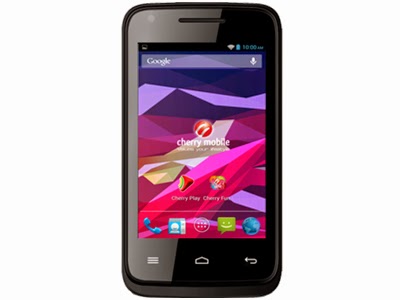
The much awaited firmware for Cherry Mobile Sapphire 2.0 is here. You can now fix your bootlooped or softbricked phones. Thank you for those who shared this firmware. To check if your sapphire is version 2, check it at the back of your phone, near IMEI section.
Read more »
If you do not have the driver. I also provide the driver. Or you can go to my Tools section and find MTK SPD Driver.
TOOLS
ResearchDownload --> DOWNLOAD HERE
Firmware --> Download HERE
Driver -- > DOWNLOAD HERE
DOWNLOAD THE FILES, AND EXTRACT. INSTALL DRIVER.
To install the driver
1. To fully flash your phone
2. To remove password, pattern lock, and gmail account.
TO remove password, pattern lock and gmail account.
1. Open Researchdownload
2. Load packet and look for file(first button)
3. Check only the following
✓FDL1✓FDL2✓UserData
4. Click in calibration/backup page, and UNCHECK ALL and press OK
5. And lastly press the Play button to continue flashing.
TO fully flash your phone.
1. Open Researchdownload
2. Load packet and look for file(first button)
3. Remove check in the following selection
✓EraseRuntimeNV
✓PHASE_CHECK
✓EraseCache
✓EraseData
✓EraseMisc
4. Click in Calibration/BACK UP page, and UNCHECK ALL and press OK
5. Press Play button
6. Press and Hold VOLUME UP and VOLUME DOWN and insert USB cable. (your phone must be turned off)
7. Repeat number 6 if your phone is not detected by researchdownload.
8. If detected by research download just wait until the flashing is done and it should reboot your phone automatically.
I hope this tutorial help you recover your phone :)
For 32bit WINDOWS OS only.
TOOLS
ResearchDownload --> DOWNLOAD HERE
Firmware --> Download HERE
Driver -- > DOWNLOAD HERE
DOWNLOAD THE FILES, AND EXTRACT. INSTALL DRIVER.
To install the driver
- Extract SPD SCI-android-usb-driver.zip anywhere you want
- Open SPD SCI-android-usb-driver
- Open x86 folder
- Open DPInst.exe this will install the driver.
1. To fully flash your phone
2. To remove password, pattern lock, and gmail account.
TO remove password, pattern lock and gmail account.
1. Open Researchdownload
2. Load packet and look for file(first button)
3. Check only the following
✓FDL1✓FDL2✓UserData
4. Click in calibration/backup page, and UNCHECK ALL and press OK
5. And lastly press the Play button to continue flashing.
TO fully flash your phone.
1. Open Researchdownload
2. Load packet and look for file(first button)
3. Remove check in the following selection
✓EraseRuntimeNV
✓PHASE_CHECK
✓EraseCache
✓EraseData
✓EraseMisc
4. Click in Calibration/BACK UP page, and UNCHECK ALL and press OK
5. Press Play button
6. Press and Hold VOLUME UP and VOLUME DOWN and insert USB cable. (your phone must be turned off)
7. Repeat number 6 if your phone is not detected by researchdownload.
8. If detected by research download just wait until the flashing is done and it should reboot your phone automatically.
I hope this tutorial help you recover your phone :)
Wednesday, January 28, 2015
MyPhone Rio Fun Stock ROM to unbrick your phone
Hey ho!,Im done uploading the stock rom for MyPhone Rio Fun, this is the second firmware that I will gonna upload for today.

Firmware Here -->MyPhone Rio Fun v1
Firmware Here --> MyPhone Rio Fun v2
VCOM Driver -->VCOM Manual
Alternative Driver --> AutoInstaller
VCOM Driver -->VCOM Manual
Alternative Driver --> AutoInstaller
SPFlashTool --> SPFlashTool
SPFlashTool --> LatestVersion
"Extract the files to your desired folder" See picture below"
"You can use any of the Flashtool above"
Installing Driver
First try the Alternative Driver, which is the AutoInstaller. Just open the install.bat then it will automatically install the driver. Then proceed to flashing. If it did not work then proceed with VCOM driver that you had downloaded. Then install it manually follow the guide below.
Video Reference using Driver Auto Installer (watch in HD)
When installing it manually your phone must be turned off, then connect it to your computer/laptop while pressing VOLUME UP or VOLUME DOWN. This will detect and look for the driver.
1. This is the first time that you will connect your phone and it will search for the correct driver.
2. Check include this location ... ... and click on browse. Look for USB VCOM Driver and Click on 2K_XP_COM folder if you are using Windows XP or Win7 for Windows 7 and then press OK when you are done picking the right folder for the driver.
3. If the driver is successfully installed MediaTek DA USB VCOM will appear in the New Hardware Wizard.
Video Installing VCOM Driver (please watch in HD)
Video Flashing your phone (please watch in HD)
Flashing
1. Launch FlashTool
2. Click on Scatter-Loading, and load your scatter file. (see example below with loaded file in Flash Tool
Video Reference Using FlashTool version 5.xxx (watch in HD)
3. After you load the file, press F9 or Press Download to Flash your Phone.
3. After you load the file, press F9 or Press Download to Flash your Phone.
4. If Download is not possible, you can press Firmware Upgrade.
5. After you press Download or Firmware Upgrade re-insert your battery and connect your Phone to the PC. Press Volume Down or Volume Up while connecting to PC.
"Hard reset your phone after flashing"
I hope this tutorial help you. Please drop a comment if something is not clear to you.
Fly IQ430 Evoke Stock ROM firmware to unbrick your phone
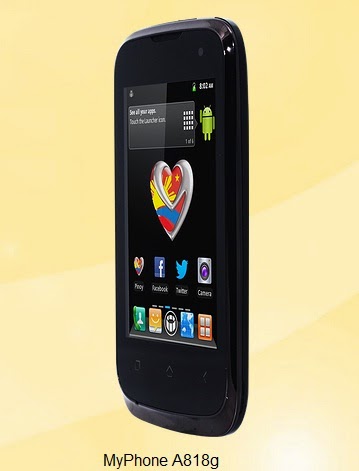
This post will work in Fly IQ430 because this is the original rom for this phone. I copied this post from MyPhone A818g. Because that phone is a rebranded Fly IQ430.
This firmware is originally for Fly IQ430, but you can use this firmware in MyPhone A818g. So if you are going to flash this firmware your MyPhone A818g will be rebranded to Fly phone. The version of this firmware is 4.1.1. If this is your first time to flash your phone there is a tutorial that you can follow below.
You can fix the following issue in your phone:
1. Bootloop
2. Damaged System UI
3. TP Upgrade only
4. Dead phone but it is detected in computer
5. Remove Gmail Account / Password / Pattern Lock (Alternative Way)
Firmware Here -->MyPhone A818g
Part 2 --> Part 2
Part 3 --> Part 3
Part 4 --> Part 4
"Extract the files to your desired folder" See picture below"
"If you encounter error in flashtool, use different version of it."
Installing Driver
First try the Alternative Driver, which is the AutoInstaller. Just open the install.bat then it will automatically install the driver. Then proceed to flashing. If it did not work then proceed with VCOM driver that you had downloaded. Then install it manually follow the guide below.
Video Reference using Driver Auto Installer (watch in HD)
When installing it manually your phone must be turned off, then connect it to your computer/laptop while pressing VOLUME UP or VOLUME DOWN. This will detect and look for the driver.
1. This is the first time that you will connect your phone and it will search for the correct driver.
3. If the driver is successfully installed MediaTek DA USB VCOM will appear in the New Hardware Wizard.
Video Flashing your phone (please watch in HD)
Flashing
Video Reference Using FlashTool version 5.xxx (watch in HD)
3. After you load the file, press F9 or Press Download to Flash your Phone.
"Hard reset your phone after flashing"
I hope this tutorial help you. Please drop a comment if something is not clear to you.
Read more »
This firmware is originally for Fly IQ430, but you can use this firmware in MyPhone A818g. So if you are going to flash this firmware your MyPhone A818g will be rebranded to Fly phone. The version of this firmware is 4.1.1. If this is your first time to flash your phone there is a tutorial that you can follow below.
You can fix the following issue in your phone:
1. Bootloop
2. Damaged System UI
3. TP Upgrade only
4. Dead phone but it is detected in computer
5. Remove Gmail Account / Password / Pattern Lock (Alternative Way)
Firmware Here -->MyPhone A818g
Part 2 --> Part 2
Part 3 --> Part 3
Part 4 --> Part 4
VCOM Driver -->VCOM Manual
Alternative Driver --> AutoInstaller
Alternative Driver --> AutoInstaller
SPFlashTool --> SPFlashTool
SPFlashTool --> LatestVersion
"Extract the files to your desired folder" See picture below"
"If you encounter error in flashtool, use different version of it."
Installing Driver
First try the Alternative Driver, which is the AutoInstaller. Just open the install.bat then it will automatically install the driver. Then proceed to flashing. If it did not work then proceed with VCOM driver that you had downloaded. Then install it manually follow the guide below.
Video Reference using Driver Auto Installer (watch in HD)
When installing it manually your phone must be turned off, then connect it to your computer/laptop while pressing VOLUME UP or VOLUME DOWN. This will detect and look for the driver.
1. This is the first time that you will connect your phone and it will search for the correct driver.
2. Check include this location ... ... and click on browse. Look for USB VCOM Driver and Click on 2K_XP_COM folder if you are using Windows XP or Win7 for Windows 7 and then press OK when you are done picking the right folder for the driver.
3. If the driver is successfully installed MediaTek DA USB VCOM will appear in the New Hardware Wizard.
Video Installing VCOM Driver (please watch in HD)
Video Flashing your phone (please watch in HD)
"Your Phone must be turned off when you are ready to connect and flash your phone"
Flashing
1. Launch FlashTool
2. Click on Scatter-Loading, and load your scatter file. (see example below with loaded file in Flash Tool
Video Reference Using FlashTool version 5.xxx (watch in HD)
3. After you load the file, press F9 or Press Download to Flash your Phone.
4. If Download is not possible, you can press Firmware Upgrade.
5. After you press Download or Firmware Upgrade re-insert your battery and connect your Phone to the PC. Press Volume Down or Volume Up while connecting to PC.
"Hard reset your phone after flashing"
I hope this tutorial help you. Please drop a comment if something is not clear to you.
Subscribe to:
Posts (Atom)